
If your WordPress site takes more than 3 seconds to load, you’re already losing visitors – and potentially rankings. Studies consistently show that page speed directly impacts bounce rates, conversions, and how Google scores your site.
This guide walks you through exactly how to speed up WordPress website, step by step. Whether you’re brand new to WordPress or have been running a site for a while, every technique here is practical and actionable — no developer experience required.
Table of Contents
Why WordPress Speed Matters – How to speed up WordPress website
Google officially uses page speed as a ranking factor – both for desktop and mobile. But beyond SEO, a slow site costs you real business.
Here’s what the data shows:
- A 1-second delay in page load time can reduce conversions by up to 7%.
- 53% of mobile users abandon a page that takes longer than 3 seconds to load.
- Google’s Core Web Vitals – a set of real-world performance metrics – now directly influence your search rankings.
WordPress performance optimization isn’t optional. It’s essential if you want to compete.
Test Your Site Speed First
Before you make any changes, you need a baseline. Guessing doesn’t work.
Recommended free tools:
- Google PageSpeed Insights – gives you Core Web Vitals scores plus specific suggestions
- GTmetrix – shows a waterfall breakdown of every loading resource
- WebPageTest – great for advanced users who want real device testing
Run your test at least 3 times and average the results. Network fluctuations can skew a single reading.
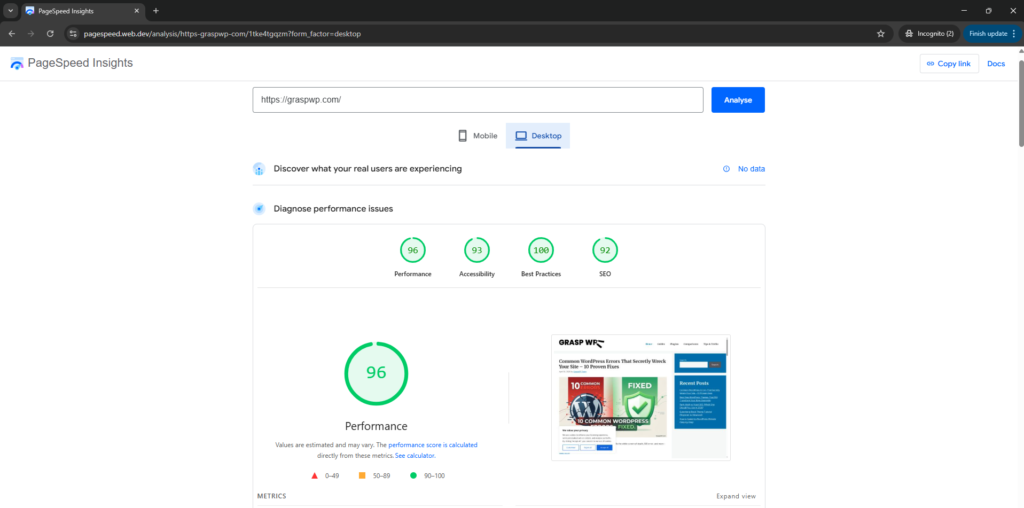
Pro Tip: Test both your homepage AND a sample blog post or product page. They often have very different performance profiles.
Choose a Fast Hosting Provider
Your hosting is the foundation of everything. Even the best caching plugin can’t fully compensate for slow hosting.
What to look for in a WordPress host:
- PHP 8.1 or higher – newer PHP versions are significantly faster
- LiteSpeed or Nginx web servers (faster than Apache for most WordPress setups)
- Server-side caching (OPcache, Redis, or Memcached)
- Data centers close to your target audience
Hosting tiers at a glance:
| Hosting Type | Speed Potential | Best For |
|---|---|---|
| Shared Hosting | Low–Medium | New / hobby sites |
| Managed WordPress | High | Serious blogs, businesses |
| VPS / Cloud | Very High | High-traffic sites |
If you’re on cheap shared hosting and your site is slow, no amount of optimization will fully fix it. Upgrading your host is often the single highest-impact change you can make. You can choose our recommended host as well.
Use a Lightweight Theme
Many popular WordPress themes are bloated with features you’ll never use – sliders, visual builders, dozens of custom fonts – all of which load on every page.
Signs your theme is slowing you down:
- It loads multiple Google Font families
- It includes its own page builder or drag-and-drop interface
- Its demo content requires 15+ plugins to function
Faster theme alternatives to consider:
- GeneratePress – under 30KB, highly performant
- Kadence – excellent balance of features and speed
- Astra – popular with good default performance
- Hello Elementor – minimal base if you use Elementor
If you’re not ready to switch themes, at minimum disable any theme features you don’t use from the theme settings panel.
Install a Caching Plugin
Caching is one of the fastest ways to improve page speed in WordPress. Instead of regenerating your pages from scratch on every visit, a cache plugin stores a static version and serves it instantly.
Top caching plugins for WordPress:
- WP Rocket (premium, ~$59/year) – the most beginner-friendly option; minimal setup, maximum results
- LiteSpeed Cache (free) – best if your host runs LiteSpeed server
- W3 Total Cache (free) – powerful but more complex to configure
- WP Super Cache (free) – lightweight and simple
Basic settings to enable in any caching plugin:
- Page caching
- Browser caching
- GZIP compression
- Database caching (if available)
Here you can find essential plugins to use.
Pro Tip: If you’re on a managed WordPress host like Kinsta, WP Engine, or Cloudways, they often provide server-level caching. Adding a second caching plugin on top can cause conflicts — check with your host first.
Optimize Your Images
Images are typically the #1 contributor to large page sizes. A single unoptimized hero image can easily be 3–5MB — that’s larger than your entire HTML, CSS, and JavaScript combined.
Image optimization checklist:
- Use the right format: WebP is ideal for most images. It’s 25–35% smaller than JPEG at the same quality.
- Resize before uploading: Don’t upload a 4000×3000px photo when your content area is 800px wide.
- Compress images: Use tools like Squoosh (free, browser-based) or plugins like ShortPixel or Imagify.
- Enable lazy loading: This makes images load only when they scroll into view. WordPress has had lazy loading built-in since version 5.5.
Recommended image optimization plugins:
- ShortPixel – excellent compression with WebP conversion
- Imagify – intuitive interface, good free tier
- Smush – popular free option with bulk optimization
Real-world example: On a portfolio site with 40+ project images, switching to WebP and compressing with ShortPixel reduced the total image payload from 8.2MB to 1.4MB — with no visible quality loss.
Use a Content Delivery Network (CDN)
A CDN stores copies of your static files (images, CSS, JS) on servers around the world. When someone in Tokyo visits your site hosted in New York, they get files from a nearby CDN server instead — dramatically cutting load times.
Good CDN options for WordPress:
- Cloudflare (free tier available) – also adds security benefits
- BunnyCDN (affordable, ~$1/month minimum) – excellent performance for the price
- KeyCDN – pay-as-you-go pricing
Most caching plugins (especially WP Rocket and LiteSpeed Cache) have built-in CDN integration, making setup straightforward.
Minify CSS, JavaScript, and HTML {#minify-files}
Every CSS and JavaScript file your site loads adds an HTTP request and download time. Minification removes unnecessary whitespace, comments, and characters from these files without changing how they work.
What to do:
- Minify CSS and JS – most caching plugins handle this automatically
- Combine CSS/JS files – reduces the number of HTTP requests (use with caution on HTTP/2)
- Defer non-critical JavaScript – tells the browser to load JS after the page content, improving perceived speed
- Remove unused CSS – tools like PurgeCSS or the built-in options in WP Rocket can strip out CSS rules your site never uses
⚠️ Warning: Combining JS files can sometimes break functionality. Always test your site after enabling these settings and check on mobile too.
Reduce and Optimize Database Queries
WordPress stores everything – posts, settings, user data, plugin options – in a MySQL database. Over time, this database accumulates clutter: post revisions, spam comments, transients, and orphaned data from deleted plugins.
How to clean up your WordPress database:
- WP-Optimize – free plugin that removes revisions, spam, and expired transients
- Advanced Database Cleaner – more granular control over what gets removed
- Alternatively, run scheduled cleanups from your caching plugin if it supports this
Additional database performance tips:
- Limit post revisions by adding this to
wp-config.php:define('WP_POST_REVISIONS', 3); - Disable autoloaded data bloat from plugins you no longer use
- Consider persistent object caching (Redis or Memcached) if your host supports it
Pro Tip: Before running any database cleanup, take a full backup. This is non-negotiable.
Fix Core Web Vitals in WordPress
Core Web Vitals are Google’s three key performance metrics. Understanding and improving them is central to WordPress performance optimization for SEO.
The three Core Web Vitals:
| Metric | What It Measures | Good Score |
|---|---|---|
| LCP (Largest Contentful Paint) | How fast the main content loads | Under 2.5 seconds |
| INP (Interaction to Next Paint) | How fast the page responds to input | Under 200ms |
| CLS (Cumulative Layout Shift) | How much the page jumps around | Under 0.1 |
How to improve each one:
LCP:
- Preload your hero image using
<link rel="preload"> - Use a fast host and CDN
- Avoid render-blocking resources above the fold
INP:
- Reduce heavy JavaScript execution
- Defer third-party scripts (chat widgets, analytics) until after page load
CLS:
- Always define width and height attributes on images
- Avoid injecting content above existing content after load
- Reserve space for ads and embeds
WP Rocket and LiteSpeed Cache both include specific Core Web Vitals optimization features that handle many of these automatically.
Common Mistakes That Slow Down WordPress
Even experienced WordPress users fall into these traps:
1. Installing too many plugins Each plugin can add database queries, JS files, and CSS. Audit your plugins quarterly. If you’re not using it, delete it — not just deactivate.
2. Using page builders on every page Visual builders like Elementor and Divi add significant JavaScript overhead. Use them selectively, or switch to block-based editing with the native Gutenberg editor.
3. Loading Google Fonts the slow way The default method of loading Google Fonts creates a render-blocking request. Use a plugin like OMGF (Host Google Fonts Locally) to self-host them instead.
4. Not using a CDN for media Serving large images directly from your server when you have no CDN is a common and easily fixable performance bottleneck.
5. Skipping mobile testing Your desktop score and mobile score can be dramatically different. Always test both — Google primarily uses your mobile score.
Frequently Ask Questions (FAQ)
What is the fastest way to speed up a WordPress website?
The three highest-impact changes are: upgrading to better hosting, installing a caching plugin, and optimizing your images (including converting to WebP). These three steps alone can dramatically improve page load time without touching code.
Does having too many WordPress plugins slow down my site?
Yes – but it’s not just about the number of plugins. A single poorly-coded plugin can cause more slowdown than ten well-optimized ones. Use a plugin like Query Monitor to identify which plugins are generating the most database queries or adding the most page weight.
How do I improve Core Web Vitals in WordPress?
Start with Google PageSpeed Insights to identify which metrics are failing. For LCP, focus on your hero image and server response time. For CLS, always set image dimensions. For INP, defer or remove heavy JavaScript. WP Rocket handles many of these automatically.
Is WP Rocket worth the cost for WordPress performance?
For most users – yes. WP Rocket costs around $59/year and handles caching, minification, lazy loading, CDN integration, and Core Web Vitals improvements through a clean interface. The time savings and performance gains typically justify the cost within the first month.
Should I use a CDN for a small WordPress blog?
Even small sites benefit from a CDN, especially if your readers are spread across different countries. Cloudflare’s free plan offers basic CDN features with no traffic limits and is worth enabling for virtually any WordPress site.
How often should I optimize my WordPress database?
For most sites, a monthly cleanup is sufficient. If you’re publishing content daily or running an e-commerce store with high transaction volume, consider weekly cleanups. Use WP-Optimize with a scheduled cleanup to automate this.
Conclusion
Speeding up your WordPress website isn’t a one-time task – it’s an ongoing practice. But the good news is that most of the heavy lifting can be handled with the right combination of hosting, a caching plugin, image optimization, and a CDN.
Here’s a quick recap of the most impactful steps:
- Test your current speed with PageSpeed Insights or GTmetrix
- Upgrade your hosting if it’s the bottleneck
- Install and configure a caching plugin (WP Rocket or LiteSpeed Cache)
- Compress and convert images to WebP
- Enable a CDN (Cloudflare is free to start)
- Minify CSS and JS, and defer non-critical scripts
- Monitor and improve your Core Web Vitals scores
Start with the items at the top of this list – they’ll give you the biggest gains with the least effort. Then work your way down as time allows.
Ready to take action? Install a caching plugin this week and run another PageSpeed test. You might be surprised how much difference a single change makes.
Have questions or want to share your results? Drop a comment below – I read every one.