
Starting a new WordPress website is exciting – but it can also be overwhelming. One of the first questions I get from clients and beginners alike is: “Which plugins should I actually install?”
The WordPress plugin directory has over 59,000 options. Most of them you’ll never need. But there’s a core set of essential WordPress plugins that every new website should have from day one — whether you’re building a blog, a business site, or an online store.
In this guide, I’ll walk you through exactly which plugins I install on every project, why they matter, and how to get started with them. No fluff, no sponsored picks – just real-world experience.
Table of Contents
What Are WordPress Plugins?
Think of WordPress plugins as apps for your website. WordPress on its own is a solid foundation, but plugins are what extend its functionality. They let you add features like contact forms, SEO tools, caching, security, and more – without touching a single line of code.
You install them directly from your WordPress dashboard, activate them with a click, and they start working immediately. That’s one of the biggest reasons WordPress powers over 40% of all websites on the internet.
Why Plugins Are Important for Every Website
Out of the box, WordPress is intentionally lean. It handles publishing content well, but it doesn’t include SEO features, spam protection, backup systems, or performance optimization by default. That’s where plugins come in.
The right plugins can:
- Help your site rank higher on Google
- Protect you from hackers and spam
- Make your pages load faster
- Keep your data safe with automated backups
- Give visitors a smoother experience
The key is to install only what you need. Too many plugins can slow your site down. I usually keep it to 10–15 well-maintained plugins on any new build.
10 Essential WordPress Plugins Every New Website Needs
1. Rank Math SEO – For Search Engine Optimization
Best for: On-page SEO, sitemaps, schema markup
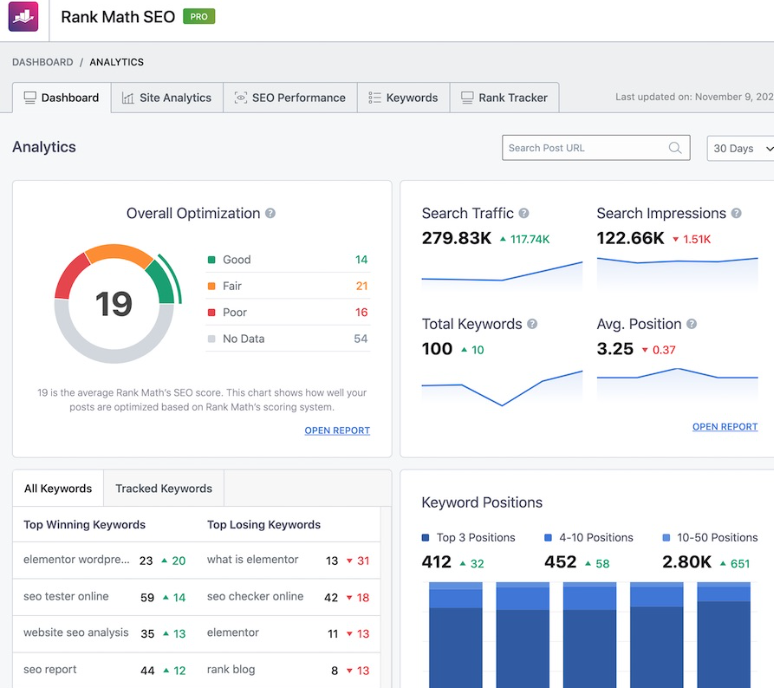
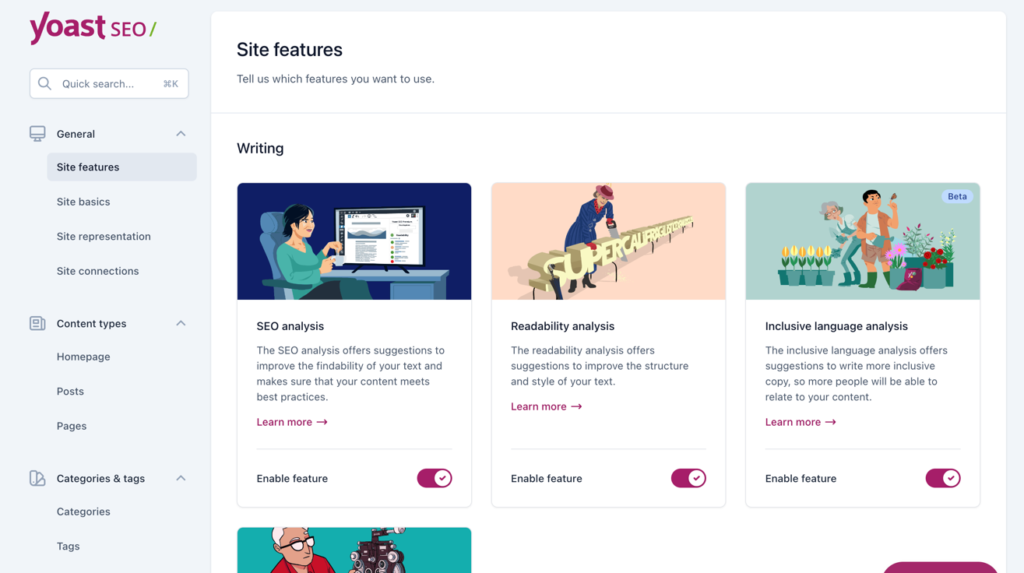
If you want your website to show up on Google, Rank Math is the plugin I recommend without hesitation. It’s replaced Yoast SEO as my go-to tool over the past couple of years – it’s faster, more feature-rich in the free version, and the interface is much more intuitive.
Rank Math helps you optimize every page and post with a focus keyword, generates your XML sitemap automatically, adds schema markup (which can earn you rich snippets in search results), and connects directly with Google Search Console.
Practical tip: Right after installing Rank Math, run the Setup Wizard. It configures 80% of the critical settings for you automatically.
2. WP Rocket – For Speed and Performance
Best for: Page caching, lazy loading, file optimization
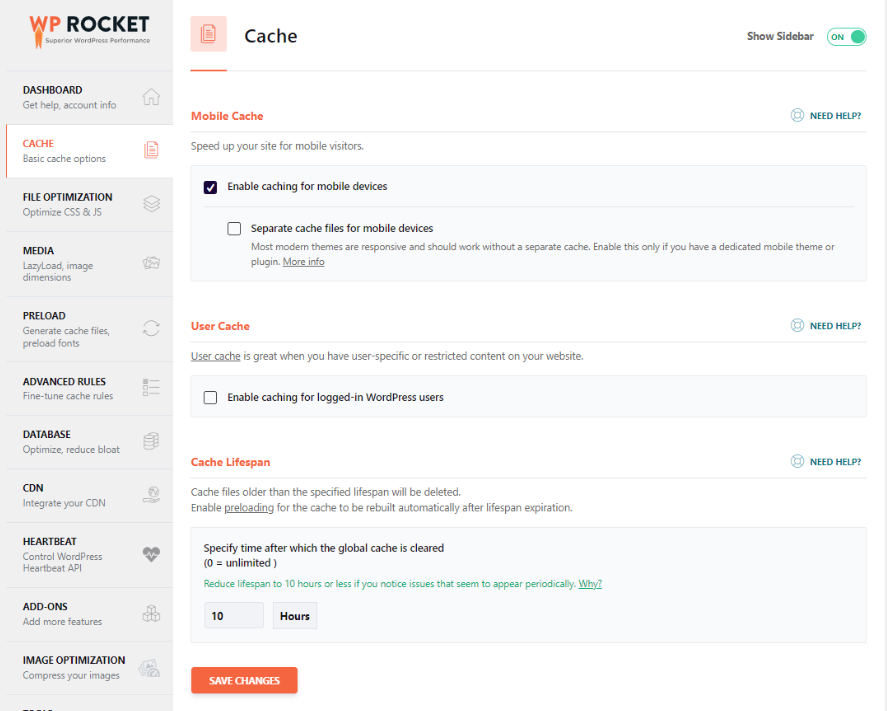
Site speed directly affects both your Google rankings and your bounce rate. WP Rocket is the best caching plugin I’ve used – it’s a premium plugin, but it pays for itself quickly by improving load times dramatically with almost zero configuration.
It handles page caching, browser caching, lazy loading for images, and minifies CSS/JavaScript files out of the box. In most of my projects, WP Rocket alone shaves 1–2 seconds off page load time.
Free alternative: If budget is tight, use LiteSpeed Cache (free, excellent for LiteSpeed servers) or W3 Total Cache.
Practical tip: After enabling WP Rocket, run your site through Google PageSpeed Insights to see your before/after scores.
3. Wordfence Security – For Website Protection
Best for: Firewall, malware scanning, login security
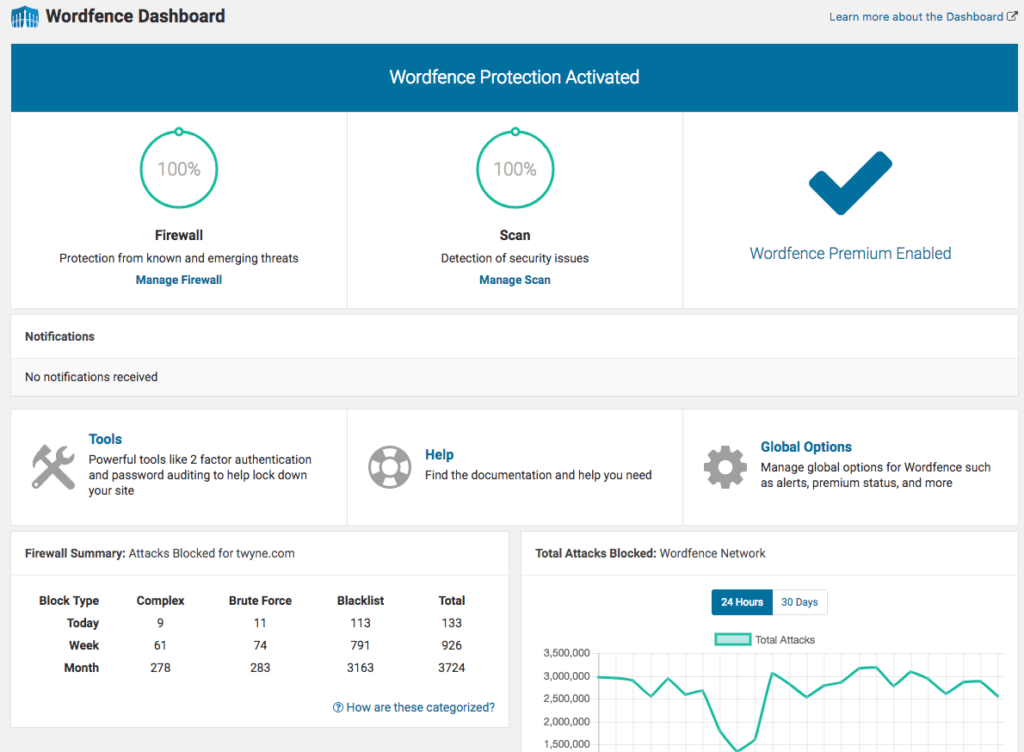
WordPress sites get attacked constantly – bots probe login pages, inject malware, and exploit outdated plugins. Wordfence is the security plugin I install on every single site.
The free version includes a Web Application Firewall (WAF), malware scanner, and brute force protection for your login page. It also sends you email alerts if something suspicious happens.
Practical tip: Enable two-factor authentication for your admin account immediately after installing Wordfence. It takes two minutes and makes your login virtually unbreakable.
4. UpdraftPlus – For Automated Backups
Best for: Scheduled backups to cloud storage
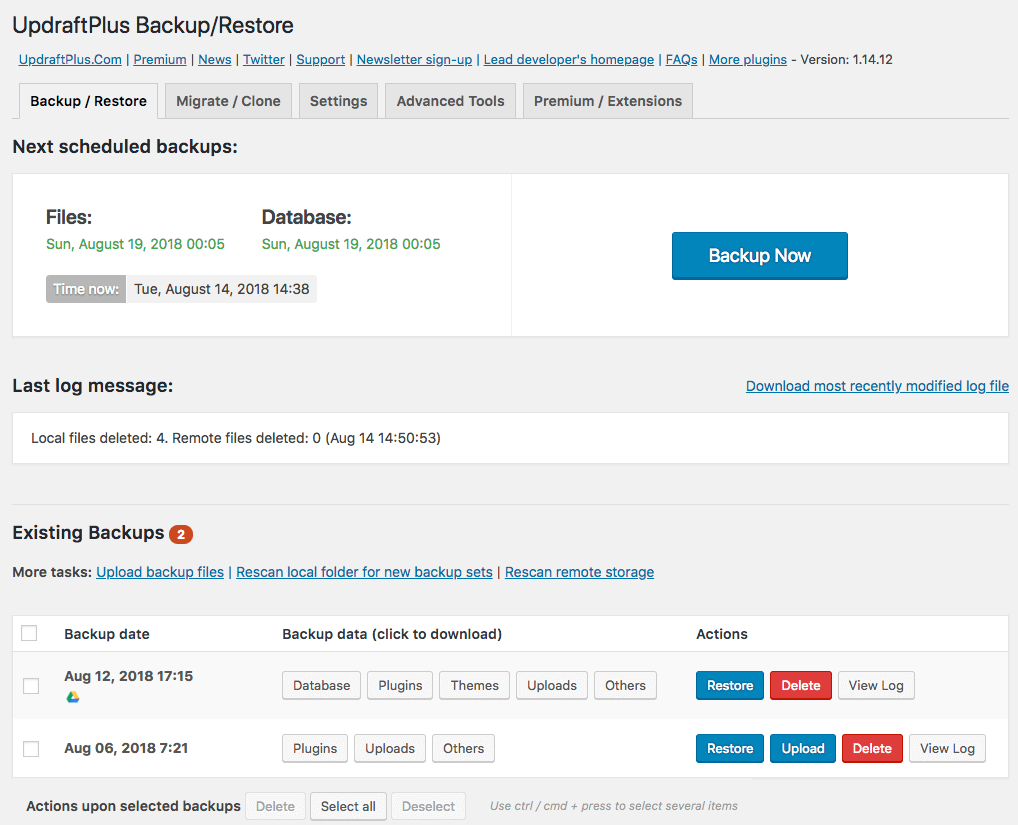
Here’s the harsh truth – if your website gets hacked, crashes, or breaks after an update, the only thing that will save you is a recent backup. UpdraftPlus is the most reliable free backup plugin available.
You can schedule automatic backups daily or weekly and store them in Google Drive, Dropbox, Amazon S3, or even just email them to yourself. The restore process is also straightforward, which matters a lot when you’re in panic mode.
Practical tip: Set up backups to an external location like Google Drive – never store backups only on your hosting server. If the server goes down, you lose both your site and your backup.
5. WPForms – For Contact Forms
Best for: Contact forms, lead generation forms, surveys
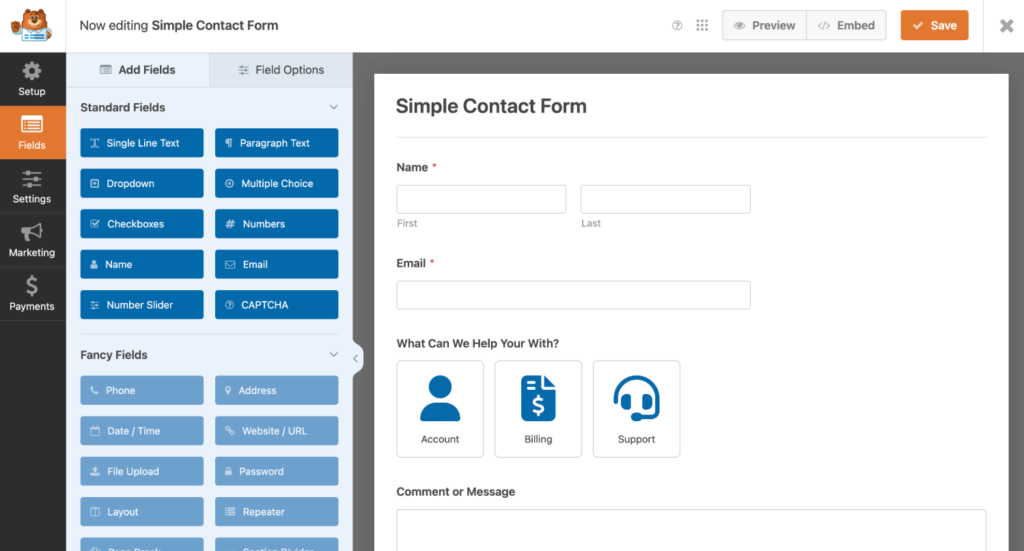
Every website needs at least a basic contact form. WPForms is the most beginner-friendly form builder I’ve come across. The drag-and-drop interface means you can build a functional contact form in under five minutes.
The free version (WPForms Lite) is solid for basic needs. The pro version unlocks payment integrations, multi-page forms, and conditional logic – useful if you’re building something more complex.
Practical tip: Always enable spam protection using the built-in honeypot feature or connect reCAPTCHA. Otherwise, your inbox will fill up with bot spam within days.
6. Smush – For Image Optimization
Best for: Compressing images, improving load speed
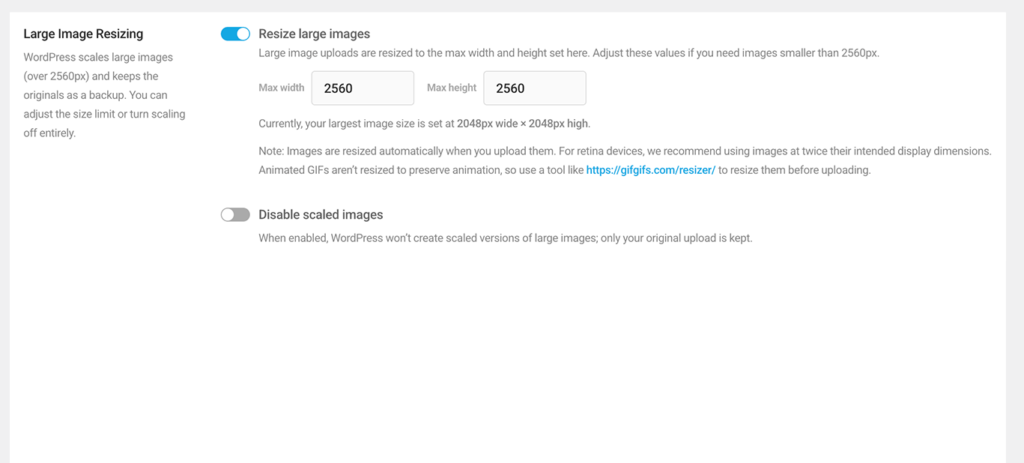
Images are usually the biggest culprit behind slow WordPress sites. Smush automatically compresses and optimizes images as you upload them – without any visible loss in quality.
The free version handles bulk optimization (up to 50 images at once) and lazy loading, which means images only load when a user scrolls to them. This can dramatically cut your page load time, especially on image-heavy sites.
Practical tip: After installing Smush, use the Bulk Smush feature to optimize all existing images you’ve already uploaded.
7. Akismet Anti-Spam – For Comment and Form Spam
Best for: Blocking spam comments automatically
If your site has comments enabled, spam will find you – usually within the first 24 hours. Akismet is built by Automattic (the same team behind WordPress) and is arguably the most effective anti-spam tool available.
It automatically checks every comment and contact form submission against its global spam database and filters out the junk before it ever reaches you. The free plan is available for personal/non-commercial sites.
Practical tip: Even if you don’t use blog comments, Akismet works with popular form plugins to block spam form submissions too.
8. Yoast Duplicate Post – For Content Workflow
Best for: Cloning pages and posts, reusable templates
This one might surprise you, but I consider it essential for any site where you’ll be publishing content regularly. Yoast Duplicate Post lets you clone any page or post with a single click – saving you massive amounts of time when you have a consistent layout or structure you want to reuse.
Instead of rebuilding a sales page or blog layout from scratch, just clone an existing one and update the content. Small plugin, huge time-saver.
9. MonsterInsights – For Google Analytics
Best for: Connecting Google Analytics, viewing stats in your dashboard
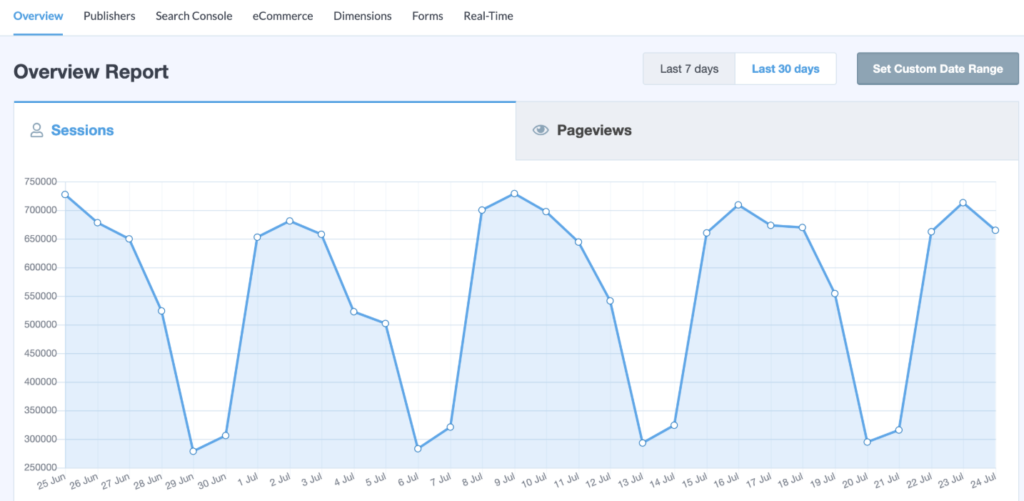
You need to know how many people are visiting your site, which pages they’re reading, where they’re coming from, and how long they’re staying. MonsterInsights connects your WordPress site to Google Analytics and displays the key stats right inside your WordPress dashboard – no need to keep switching tabs.
The free version covers the basics beautifully. You get traffic reports, top pages, referral sources, and device breakdowns – everything a new site owner needs.
Practical tip: Set up MonsterInsights before you launch so you’re collecting data from day one. Traffic data from your first month can be surprisingly useful later.
10. WP Mail SMTP – For Reliable Email Delivery
Best for: Fixing WordPress email delivery issues
This is one of the most overlooked plugins, but it solves a real problem. By default, WordPress uses PHP mail to send emails – and most hosting servers don’t configure this properly. The result? Password reset emails, contact form notifications, and WooCommerce order confirmations end up in spam or don’t get delivered at all.
WP Mail SMTP reroutes your WordPress emails through a proper SMTP provider (like Gmail, SendGrid, Mailgun, or Brevo). Once it’s set up, your emails actually reach people. I’ve had to install this on almost every site I’ve built to fix email issues.
Practical tip: Use the free Brevo (formerly Sendinblue) SMTP plan – 300 emails/day free, and setup takes about 10 minutes.
How to Install a WordPress Plugin (Step-by-Step)
If you’re brand new to WordPress, here’s exactly how to install any plugin:
Method 1: From the WordPress Dashboard (Recommended)
- Log in to your WordPress admin panel (yourdomain.com/wp-admin)
- In the left sidebar, go to Plugins → Add New
- Use the search bar to find the plugin by name
- Click Install Now on the plugin you want
- Once installed, click Activate
- That’s it — the plugin is now active on your site
Method 2: Manual Upload (For Premium Plugins)
- Download the plugin .zip file from the developer’s website
- Go to Plugins → Add New → Upload Plugin
- Click Choose File, select the .zip file, and click Install Now
- Click Activate Plugin
Detailed guide can be found here.
Important: Only download premium plugins from official sources. Nulled (pirated) plugin files are one of the most common ways WordPress sites get infected with malware.
Frequently Asked Questions (FAQ)
How many WordPress plugins should I install on a new website?
There’s no strict limit, but I generally recommend keeping it under 15 active plugins when starting out. Every plugin you add is additional code running on your site. Focus on plugins that serve a clear purpose – and deactivate and delete any you’re not using.
Do WordPress plugins slow down your website?
They can – but only if they’re poorly coded or you install too many. Quality plugins from reputable developers (like the ones on this list) have minimal impact on performance. Installing a caching plugin like WP Rocket actually improves your speed significantly.
Are free WordPress plugins safe to use?
Yes, as long as you download them from the official WordPress Plugin Directory (wordpress.org/plugins). Always check that a plugin has been updated recently, has a high star rating, and is actively supported by the developer. Avoid installing plugins that haven’t been updated in over a year.
Conclusion
You don’t need 40 plugins to run a great WordPress website. Start with this core list, get comfortable with each one, and add more only when you have a specific need.
To recap the 10 essential WordPress plugins every new site needs:
- Rank Math SEO – Get found on Google
- WP Rocket – Fast load times
- Wordfence Security – Stay protected
- UpdraftPlus – Automatic backups
- WPForms – Contact forms made easy
- Smush – Optimized images
- Akismet – Block spam automatically
- Yoast Duplicate Post – Faster content workflow
- MonsterInsights – Understand your traffic
- WP Mail SMTP – Reliable email delivery
Get these installed before you launch, and your site will have a rock-solid foundation from day one.