
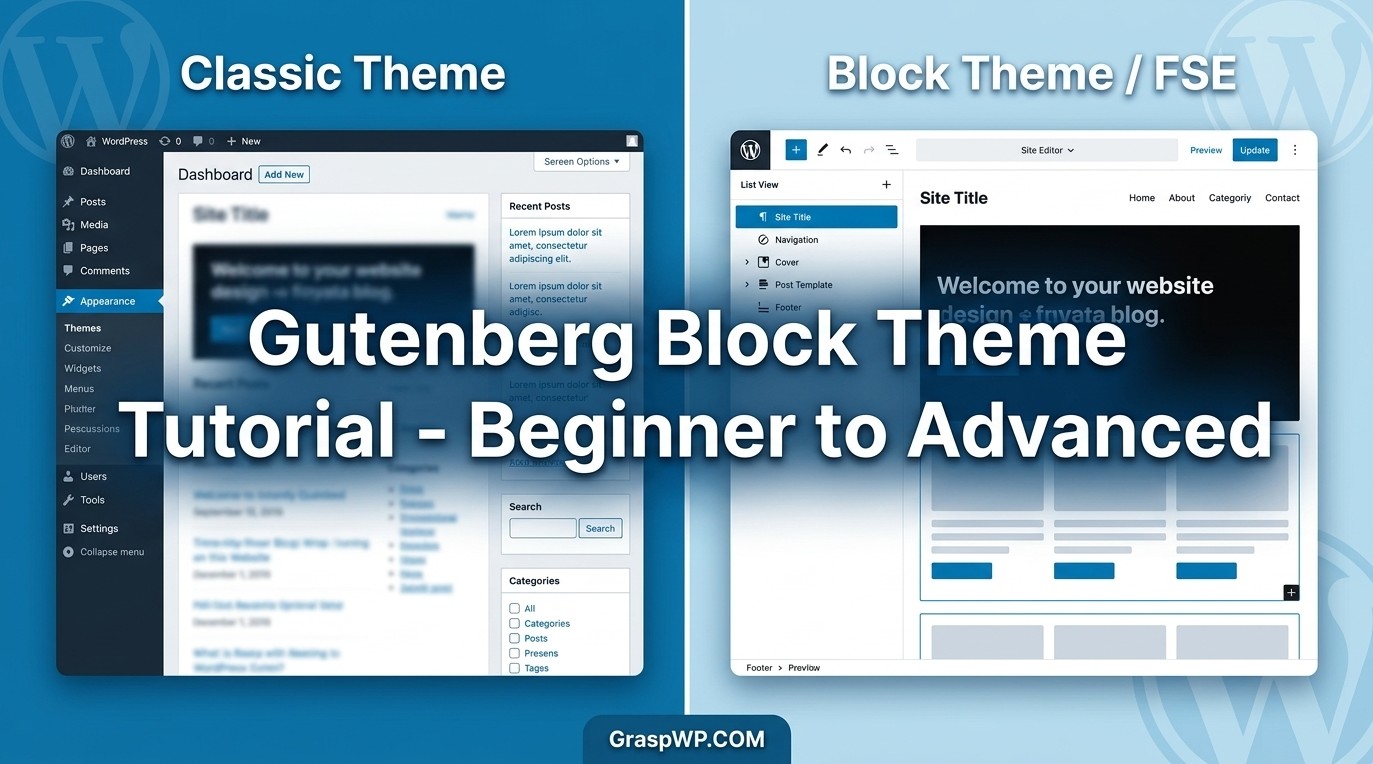
Most WordPress tutorials still teach you how to customize themes using old menus, PHP files, and widget areas that are slowly becoming obsolete. If you’ve recently heard about block themes and Full Site Editing (FSE) and weren’t sure where to start, you’re in the right place.
This Gutenberg block theme tutorial covers everything from understanding what a block theme actually is, to editing your site’s header, footer, and page templates, all without writing a single line of code. Whether you’re just getting started or looking to go deeper, this guide walks you through it step by step.
Table of Contents
What Is a Gutenberg Block Theme?
A Gutenberg block theme – also called a block-based theme or FSE theme – is a WordPress theme built entirely using blocks. Unlike classic themes that relied on PHP templates, widget areas, and the Customizer, block themes are controlled through the Site Editor, a visual interface built directly into WordPress.
The concept became stable with WordPress 5.9 in early 2022, but it’s matured significantly since then. In 2026, block themes are the direction WordPress is clearly moving toward – and learning them now puts you ahead of the curve.
Key characteristics of a block theme:
- Has a
theme.jsonfile that controls design settings globally - Uses block-based templates instead of PHP template files
- Lets you edit every part of your site (header, footer, pages) from one interface
- No Customizer – all design happens inside the Site Editor
Block Themes vs Classic Themes: Key Differences
If you’ve used WordPress for any amount of time, you’ve probably worked with a classic theme. Here’s how the two approaches compare:
| Feature | Classic Theme | Block Theme |
|---|---|---|
| Template editing | PHP files (FTP/code) | Visual Site Editor |
| Header/Footer editing | Widget areas or Customizer | Template Parts editor |
| Global design control | Theme options panel | theme.json + Style panel |
| Learning curve | Moderate (needs some PHP) | Low (all visual) |
| Future-proof | Declining support | Actively developed |
Classic themes aren’t going away tomorrow – WordPress still supports them fully. But if you’re building a new site or learning WordPress from scratch, starting with a block theme makes more long-term sense.
Pro Tip: Even if you currently use a classic theme like Astra or GeneratePress, it’s worth setting up a test site with a block theme to learn FSE. The skills transfer well.
How to Install a Block Theme in WordPress
Installing a block theme works exactly like installing any WordPress theme. Here’s how:
- Go to Appearance > Themes in your WordPress dashboard
- Click Add New Theme
- Search for a block theme – try “Twenty Twenty-Five”, “Ollie”, or “Spectra One”
- Click Install, then Activate
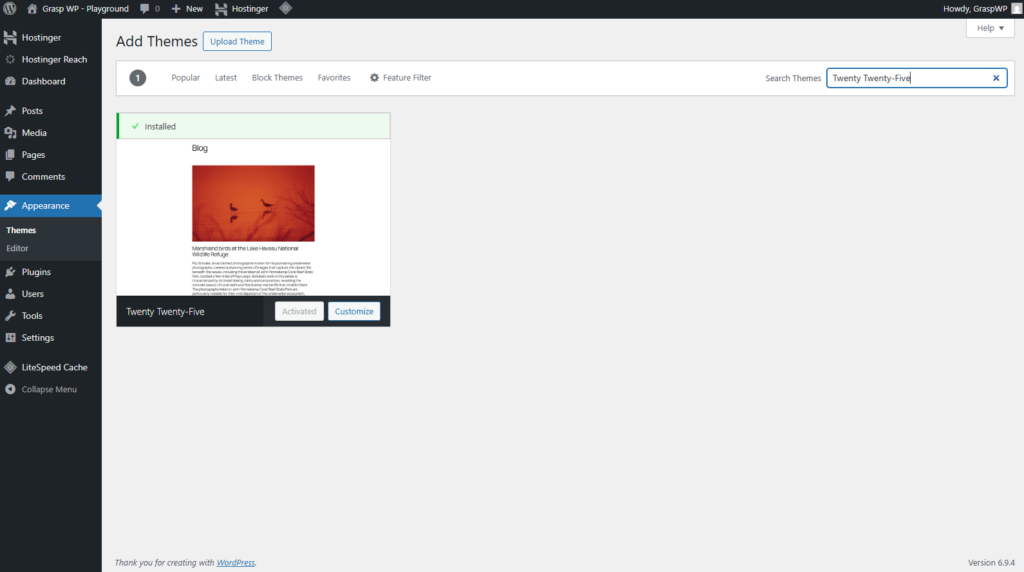
Recommended block themes to start with:
- Twenty Twenty-Five – WordPress’s official default theme, minimal and well-documented
- Ollie – beautifully designed, good for portfolio/business sites
- Spectra One – from the makers of Spectra blocks, clean and fast
- Kadence (block theme version) – excellent design system with strong community support
Once activated, you’ll notice that Appearance > Customize is replaced by Appearance > Editor. That’s your new home base.
Read how to install WordPress as well.
Getting Started with Full Site Editing (FSE)
Full Site Editing is the umbrella term for editing your entire website – not just posts and pages – using the block editor. It’s the core feature that block themes unlock.
To open the Site Editor:
- Go to Appearance > Editor from your dashboard
- The editor opens showing your site’s front page in a full visual canvas
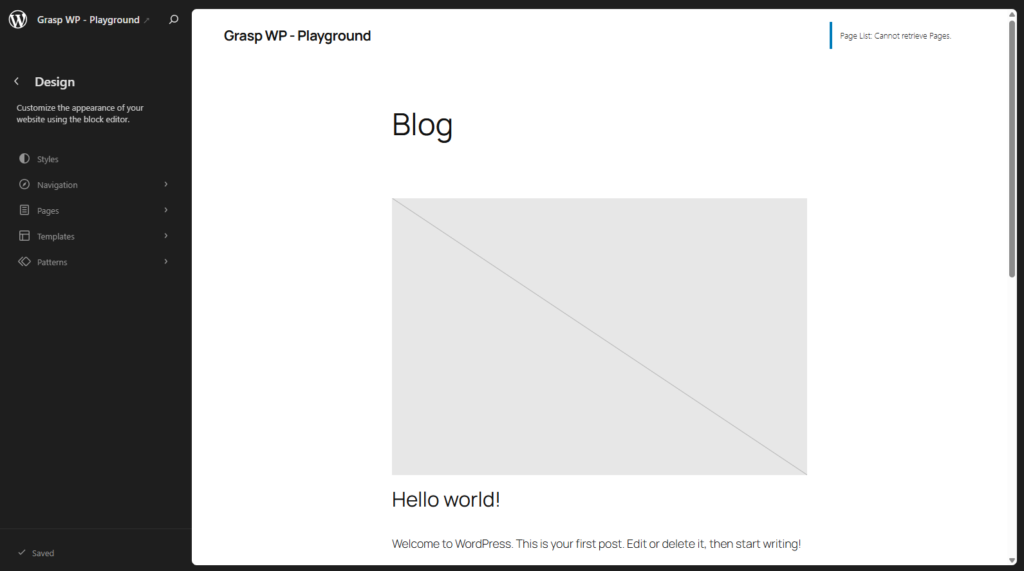
The Site Editor sidebar has five main sections:
- Navigation – edit your site’s menus visually
- Styles – control global colors, typography, and spacing
- Pages – view and edit individual pages
- Templates – the layouts used for different content types (home, single post, archive, 404)
- Patterns – reusable block groups you can insert anywhere
Take a few minutes to click through each section before making any edits. Understanding the structure saves you a lot of confusion later.
Editing Templates in the Site Editor
Templates are the backbone of any WordPress block themes guide. Each template controls how a specific type of page looks – your single blog posts, category archives, homepage, and more.
How to Edit a Template
- In the Site Editor, click Templates from the left sidebar
- You’ll see a list of all available templates (Single, Page, Archive, 404, etc.)
- Click any template to open it in the editor
- Make your changes using blocks – just like editing a page or post
- Click Save in the top right when done
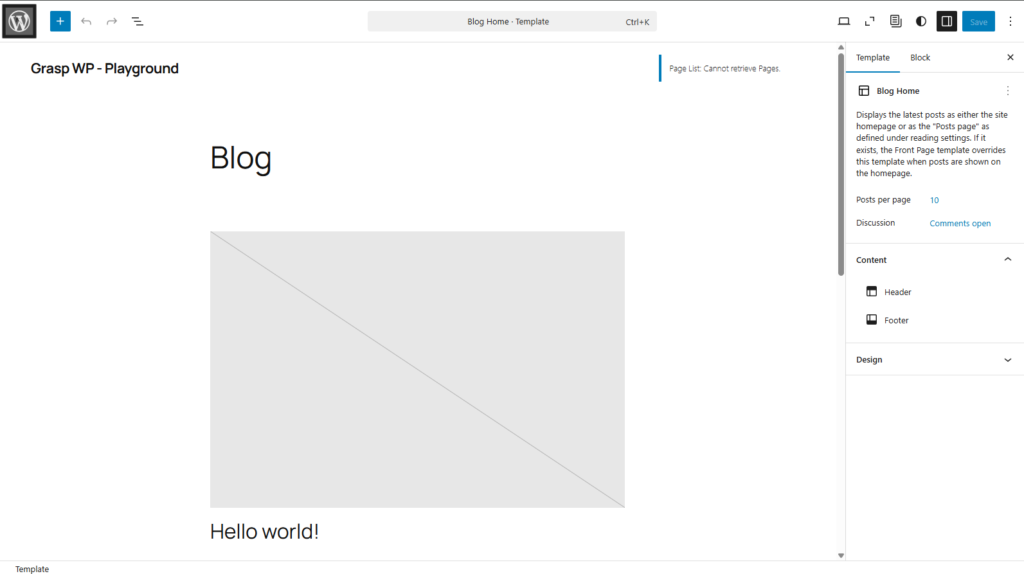
What Each Template Does
- Single – used for individual blog posts
- Page – used for standard static pages (About, Contact, etc.)
- Blog Home – your blog listing page
- Archive – category and tag pages
- 404 – shown when a page isn’t found
- Search – results page layout
Pro Tip: Start with the “Single” template if you publish blog posts regularly. That’s the one your readers see most often.
Working with Template Parts (Header, Footer)
Template parts are reusable sections – most commonly your header and footer – that appear across multiple templates. Change your header once, and it updates site-wide.
Editing Your Header
- In the Site Editor, go to Templates > (any template)
- Click on the header area of the canvas
- A toolbar will appear – click Edit (the pencil icon) or look for the header block in the list view
- Alternatively, go to the main Editor sidebar and look for Template Parts
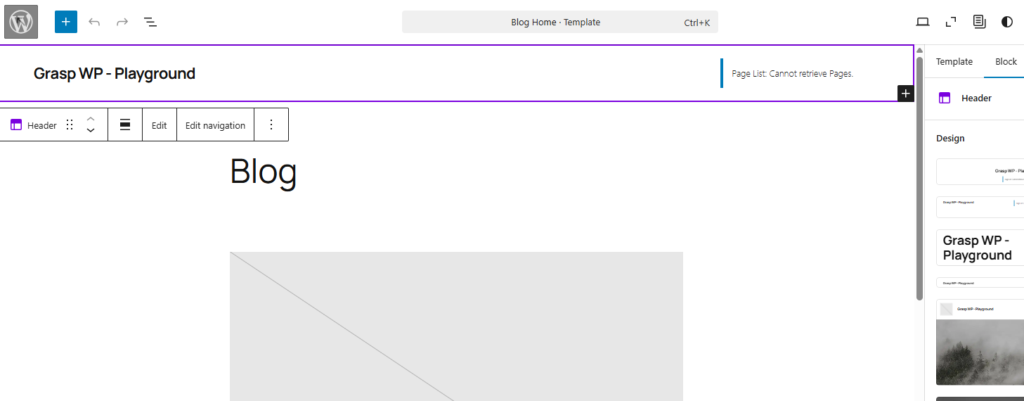
Inside the header template part, you can:
- Add or remove your site logo block
- Edit your Navigation block (add/remove menu items)
- Adjust spacing, colors, and layout using block settings
Editing Your Footer
The process is identical for the footer. Click the footer area, enter the template part, and edit using blocks. Common footer elements include:
- Site tagline or copyright text (Paragraph block)
- Navigation links
- Social icons (using the Social Links block)
- Widget-like columns with contact info or recent posts
Real-world example: On a client site using the Ollie theme, switching the footer from a single-column layout to a three-column grid using the Columns block took less than 5 minutes – no code, no child theme required.
Using the Style System to Control Design
The Styles panel in the Site Editor is where you control your site’s global design – colors, typography, spacing, and button styles – all from one place.
How to Access Styles
- Open Appearance > Editor
- Click the Styles icon (looks like a half-moon circle) in the top right of the editor toolbar
- The Styles panel opens on the right side
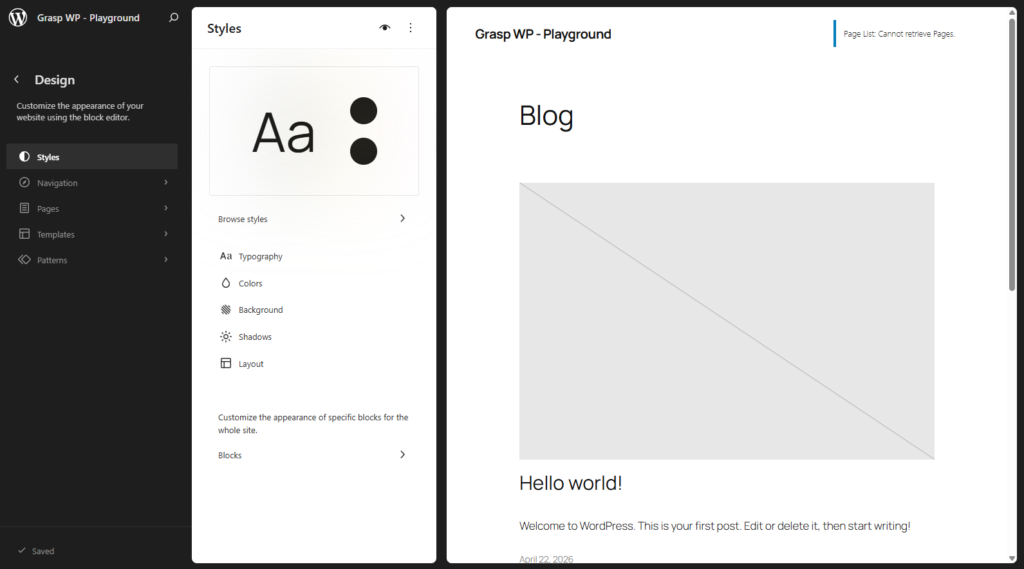
What You Can Control
- Colors – set your primary, secondary, and background colors; these cascade through your entire site
- Typography – choose fonts for headings and body text globally (no more editing each block individually)
- Layout – set content width and padding defaults
- Blocks – override styles for specific block types (e.g., make all Buttons use rounded corners)
Style Variations
Many block themes include Style Variations – pre-built design combinations you can apply instantly. In the Styles panel, click Browse styles to see all available variations.
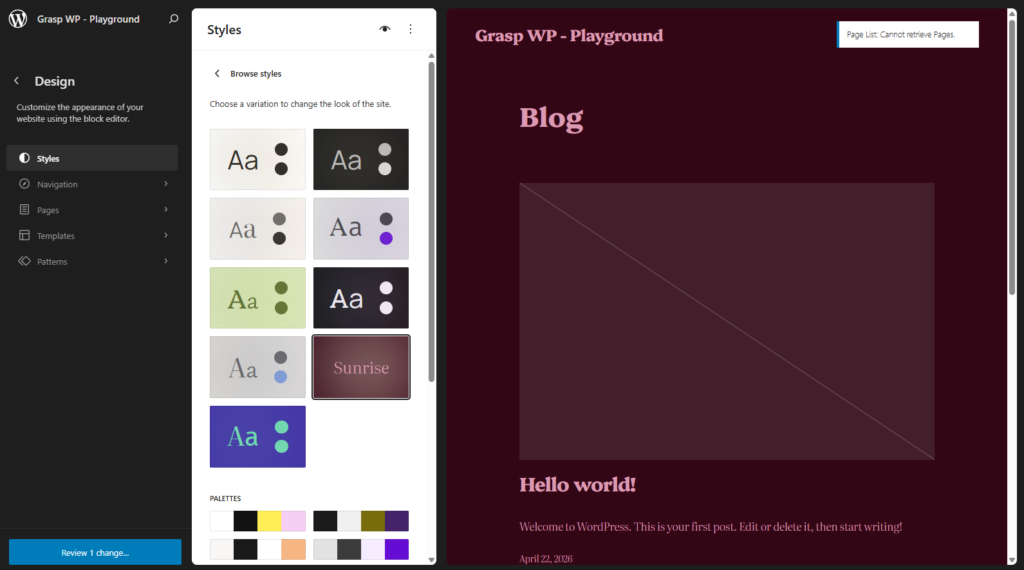
This is one of the most underrated features of block themes. You can completely transform your site’s look in seconds.
Creating Custom Page Templates
Sometimes you need a page that looks different from the rest of your site – a landing page without a header and footer, a wide full-bleed layout, or a custom sales page.
Method 1: Create a New Template from Scratch
- Go to Templates in the Site Editor
- Click the Add New Template button (+ icon)
- Choose “Custom template”
- Give it a name (e.g., “Landing Page – No Header”)
- Build the layout using blocks
- Save the template
Method 2: Assign a Template to a Specific Page
- Edit any Page from Pages > All Pages
- In the right sidebar under Page, find the Template dropdown
- Select your custom template from the list
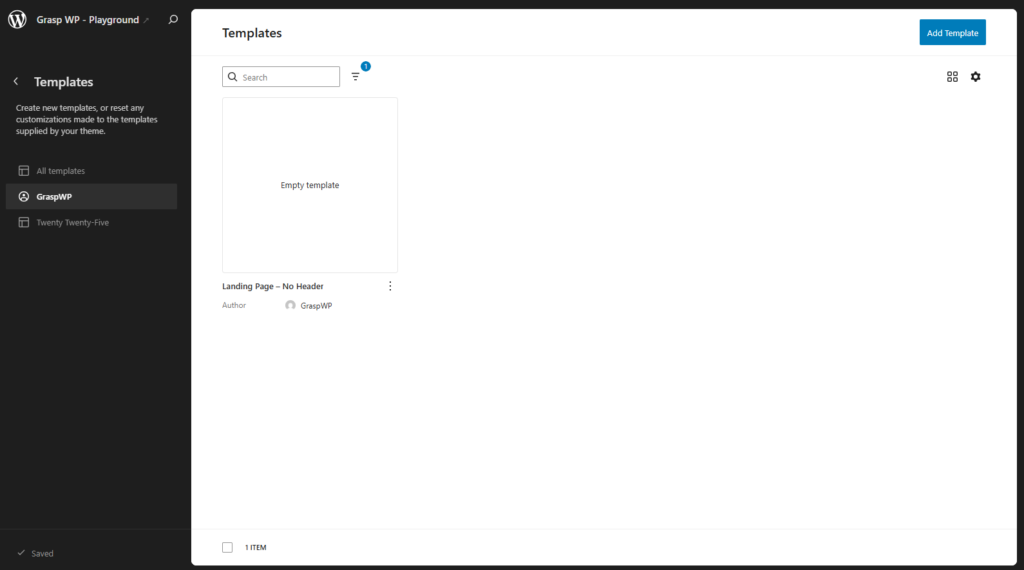
Pro Tip: For landing pages, create a template that includes only a header with no navigation and no footer. This removes distractions and can improve conversion rates significantly.
Common Mistakes Beginners Make with Block Themes
Learning FSE WordPress has a learning curve. Here are the most common pitfalls – and how to avoid them.
1. Editing a template when you mean to edit a page (and vice versa)
If you edit a template, those changes affect every page using that template. If you only want to change one specific page, edit the page directly from Pages > All Pages, not from the Templates panel.
2. Not saving template changes
The Site Editor won’t auto-save your work. Always click the Save button in the top right corner after making changes. It’s easy to close the editor and lose everything.
3. Overwriting global styles when you just need a block-level change
If you want one specific button to be a different color, change it at the block level – not in the global Styles panel. Global changes affect every button across your site.
4. Installing a plugin that conflicts with FSE
Some older page builder plugins or classic theme companion plugins don’t play well with block themes. If something breaks after activation, deactivate your newest plugin first.
5. Skipping theme.json entirely
You don’t need to be a developer to understand theme.json basics. It controls what options appear in the editor. If certain color or font options aren’t showing up, the theme’s theme.json may be restricting them. This is worth Googling if you hit a wall.
Frequently Ask Questions (FAQ)
What is the difference between a block theme and a classic theme in WordPress?
A classic theme uses PHP template files and relies on the Customizer for design options. A block theme uses the WordPress Site Editor – a fully visual interface – and controls design through theme.json and block settings. Block themes are newer, more flexible, and are the future of WordPress theming.
Can I use Gutenberg blocks with a classic theme?
Yes – Gutenberg (the block editor) works with both classic and block themes for editing posts and pages. However, Full Site Editing features like template editing, the Style system, and template parts are only available with block themes.
Is Full Site Editing (FSE) beginner-friendly?
It’s more beginner-friendly than editing PHP files, but there is a learning curve – especially if you’re used to the classic Customizer. The key is starting with a well-documented block theme like Twenty Twenty-Five and experimenting in a test environment before going live.
Do I need to know how to code to use a block theme?
No. The entire point of block themes and FSE is to make visual editing possible without code. That said, basic familiarity with theme.json helps when you want more control over which design options appear in the editor.
Which block theme is best for beginners in 2026?
Twenty Twenty-Five is the safest starting point – it’s maintained by the WordPress core team, well-documented, and regularly updated. Ollie and Kadence Block Theme are excellent choices if you want more built-in design flexibility right out of the box.
Can I convert my existing classic theme to a block theme?
Not directly. Block themes and classic themes have fundamentally different file structures. The practical approach is to build a new site on a block theme, then migrate your content. If you need to stay on a classic theme, some themes like Kadence and GeneratePress are adding hybrid block support.
Conclusion
Block themes and Full Site Editing represent a genuine shift in how WordPress works – and the good news is it’s mostly a shift toward simplicity. Once you understand the structure (templates, template parts, and the Style system), editing your entire site becomes faster and more intuitive than it’s ever been.
Here’s a quick recap of what you’ve learned:
- Block themes use the Site Editor instead of the Customizer
- Templates control layout types; template parts (like headers and footers) are shared across templates
- The Styles panel lets you control your entire site’s design from one place
- You can create custom page templates for landing pages or special layouts
- Common mistakes are easy to avoid once you understand how templates and pages relate
Your next step: Install Twenty Twenty-Five on a test site (or a staging environment), open the Site Editor, and spend 30 minutes clicking through every panel. You’ll learn more from hands-on exploration than any tutorial can teach.
If you found this guide helpful or have a question about a specific part of block themes, drop a comment below – happy to help.