
A slow website does not just frustrate visitors – it kills your rankings. If your WordPress site takes more than 3 seconds to load, studies show over half your visitors have already left. The good news? Installing the right caching plugin can cut your load time dramatically, often without touching a single line of code.
In this guide, we cover the best caching plugins for WordPress – both free and paid options – so you can pick the one that fits your site, your budget, and your skill level. Whether you are just starting out or managing a high-traffic blog, there is a plugin on this list for you.
Table of Contents
What Is WordPress Caching and Why Does It Matter?
Every time someone visits your WordPress site, the server runs PHP, queries the database, and builds the page from scratch. This process takes time – and it repeats for every single visitor.
Caching solves this by saving a ready-made version of your pages and serving that saved copy to future visitors. No repeated database queries, no repeated page building. Just fast, clean delivery.
The result is a faster site, lower server load, and better performance on Google’s Core Web Vitals – all of which directly affect your search rankings.
If you are new to WordPress performance, we recommend reading our guide on how to speed up your WordPress website first – it covers caching alongside other important optimization techniques.
Types of Caching You Should Know About
Before choosing a WordPress cache plugin, it helps to understand what kinds of caching exist. Most good plugins handle more than one type.
- Page caching – Saves full HTML pages so they load instantly for returning visitors.
- Browser caching – Tells visitors’ browsers to store static files (CSS, JS, images) locally, so repeat visits are faster.
- Object caching – Saves database query results so WordPress does not repeat them on every page load.
- CDN integration – Distributes cached files across global servers so visitors get content from the nearest location.
- Minification – Strips unnecessary spaces and characters from CSS and JavaScript files to reduce file size.
The best plugins combine several of these into one clean dashboard.
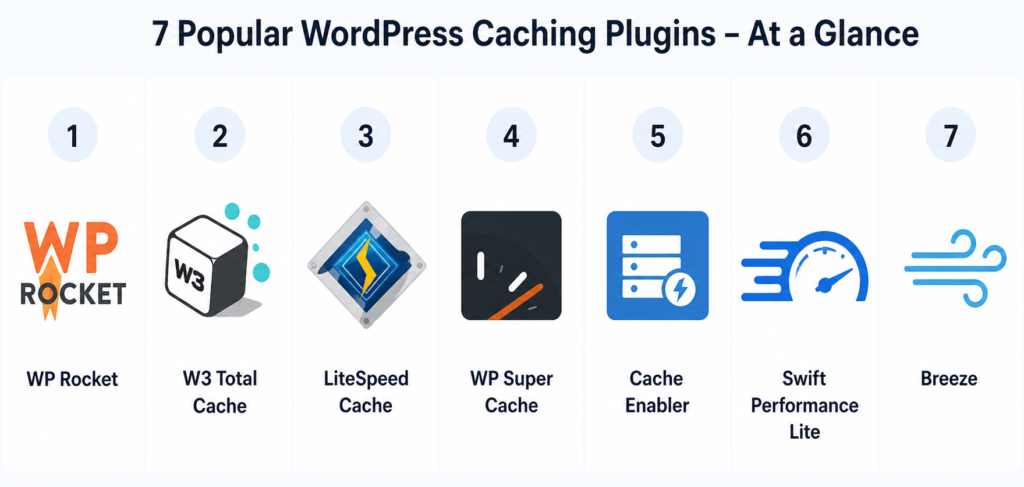
The 7 Best Caching Plugins for WordPress (Compared)
1. WP Rocket – Best Premium Caching Plugin Overall
Price: From $59/year | Type: Premium only
WP Rocket is widely considered the gold standard of WordPress caching plugins. It is not free, but it is the closest thing to a “set it and forget it” performance solution available.
Out of the box, it enables page caching, browser caching, GZIP compression, and database cleanup. You do not need to be a developer to configure it – the default settings alone produce noticeable speed improvements.
What Makes WP Rocket Stand Out:
- LazyLoad for images and videos built in
- Deferred JavaScript loading to reduce render-blocking
- Preloading so your cache is always warm
- One-click CDN integration including Cloudflare
- WooCommerce-compatible cache exclusions
Pro Tip: WP Rocket works best when your hosting is already solid. Pairing it with a quality host like Hostinger – which includes LiteSpeed servers and built-in caching at the server level – can push your performance scores even higher.
Best for: Bloggers, business sites, and anyone who wants the fastest results with minimal configuration.
2. W3 Total Cache – Most Powerful Free Option
Price: Free (Pro version available) | Type: Free + Premium
W3 Total Cache has been around since 2009 and remains one of the most feature-rich free caching plugins available. It supports page caching, object caching, database caching, browser caching, and full CDN integration.
That power comes with a caveat: the settings panel is dense. If you are a complete beginner, the number of options can feel overwhelming. But if you are willing to spend 30 minutes configuring it properly, the results are excellent.
Key Features:
- Compatible with shared hosting, VPS, and dedicated servers
- Supports Memcached, Redis, and APC for object caching
- Works well with Cloudflare and most major CDNs
- Fragment caching for dynamic content
Common Mistake: Many beginners enable every single option in W3 Total Cache at once. This frequently causes broken pages or conflicts with other plugins. Start with page caching and browser caching only, then layer in other features one at a time.
Best for: Intermediate users comfortable tweaking settings, or developers building sites for clients.
3. LiteSpeed Cache – Best Free Plugin for LiteSpeed Servers
Price: Free | Type: Free
LiteSpeed Cache is free, but it requires a LiteSpeed web server to unlock its full potential. If your host runs LiteSpeed – including Hostinger, Cloudways, and many others – this plugin is arguably the best free caching option available, full stop.
It handles everything from page caching and image optimization to CSS/JS minification, lazy loading, and even a built-in CDN called QUIC.cloud.
Key Features:
- Server-level caching – much faster than PHP-based caching
- Free image optimization with WebP conversion included
- Built-in critical CSS generation
- Object caching with Redis and Memcached support
- Compatible with WooCommerce and Elementor
Pro Tip: If you are hosting with Hostinger, LiteSpeed Cache integrates directly with their server environment. Install the plugin and the server-level cache kicks in automatically. This combination gives you premium-level performance at zero extra cost.
Best for: Anyone hosted on LiteSpeed-powered hosting who wants top performance for free.
4. WP Super Cache – Best for Beginners on a Budget
Price: Free | Type: Free
Developed by Automattic, the company behind WordPress.com, WP Super Cache is one of the most trusted free caching plugins in the WordPress ecosystem. It is lightweight, reliable, and far easier to set up than W3 Total Cache.
It generates static HTML files from your WordPress pages and serves those to visitors. Setup takes under five minutes using the “Simple” mode.
Key Features:
- Three caching modes: Simple, Expert (mod_rewrite), and WP-Cache
- CDN support built in
- Cache preloading option
- Automatic garbage collection to clear stale cache
Common Mistake: WP Super Cache does not include minification by default. Pair it with a plugin like Autoptimize, or use your theme’s built-in optimization options, to get the most out of it.
Best for: Beginners who want reliable, simple caching without a learning curve.
5. Cache Enabler – Lightweight and No-Fuss
Price: Free | Type: Free
Cache Enabler by KeyCDN is a minimalist caching plugin with a very small footprint. It focuses on what matters most – generating fast static HTML files – without adding extra weight or complex settings.
It is particularly useful if you are running a lightweight WordPress site and want caching that does not interfere with anything else. It also natively supports WebP images, which gives you an edge on modern performance metrics.
Key Features:
- Static HTML page caching with WebP support
- Works seamlessly with KeyCDN
- HTML minification
- Cache behavior rules for specific post types or pages
Best for: Minimalist site owners or developers who prefer simple tools over feature-heavy dashboards.
6. Swift Performance Lite – Smart Guided Caching
Price: Free (Pro version available) | Type: Free + Premium
Swift Performance Lite uses an automated setup wizard that analyses your server environment and recommends the ideal configuration. This makes it more beginner-friendly than W3 Total Cache, while still offering advanced features under the hood.
The free version includes page caching, GZIP compression, image lazy loading, and database optimization. The Pro version adds features like Google Fonts optimization and smarter cache rules.
Key Features:
- Setup wizard for automatic configuration
- Full page caching with logged-in user support
- Intelligent cache clearing – only purges what actually changed
- Critical CSS generation (Pro)
Best for: Intermediate users who want a guided, smart setup without paying for a premium plugin.
7. Breeze – Best Free Cache Plugin for Cloudways Users
Price: Free | Type: Free
Breeze is developed by Cloudways and is optimized specifically for their hosting environment. If you are on Cloudways, it integrates directly with their Varnish caching layer for server-level performance.
Even outside Cloudways, Breeze is a solid free option. It handles page caching, Varnish integration, database cleanup, and basic minification without any confusing settings.
Key Features:
- Full page caching
- Varnish cache integration for Cloudways environments
- CSS and JS minification
- Database optimization built in
Best for: Cloudways-hosted sites, or anyone looking for a clean and straightforward free caching plugin.
Free vs Paid Caching Plugins: Which Should You Choose?
This is one of the most common questions beginners ask, and the answer depends entirely on your situation.
Go with a free plugin if:
- You are just starting out and testing your first site
- Your hosting already provides server-level caching like LiteSpeed hosts
- Your site has low to medium traffic and does not run an online store
Consider a paid plugin if:
- Your site is a business or earns revenue
- You want the best possible performance with minimal configuration
- You run WooCommerce or a membership site with complex caching needs
- You value dedicated support when something goes wrong
WP Rocket is the most popular paid choice, but if budget is a concern, LiteSpeed Cache on a LiteSpeed host is the most powerful free alternative. For LiteSpeed users, it can actually match or outperform WP Rocket in raw speed tests.
For a broader look at plugins every WordPress site should have, check out our guide on essential WordPress plugins for new websites.
How to Set Up a Caching Plugin (Step-by-Step for Beginners)
We will use WP Super Cache as an example since it is free and beginner-friendly. The general flow applies to most caching plugins.
- Log in to your WordPress dashboard.
- Go to Plugins > Add New and search for “WP Super Cache.”
- Click Install Now and then Activate.
- Go to Settings > WP Super Cache.
- On the Easy tab, select Caching On and click Update Status.
- Click the Test Cache button to confirm it is working.
- Visit your site and check your page load time using Google PageSpeed Insights or GTmetrix.
Pro Tip: After activating any caching plugin, clear your existing cache first, then test your site on both desktop and mobile. A plugin misconfiguration can sometimes serve outdated or broken pages without you noticing right away.
Common Caching Mistakes to Avoid
Even with the best speed optimization plugins installed, small mistakes can undo your progress. Here are the ones that come up most often:
- Running two caching plugins at once – This causes conflicts that can break your site. Pick one and stick with it.
- Not excluding the checkout page on WooCommerce – Cart and checkout pages should never be cached, or customers may see incorrect session data.
- Forgetting to clear cache after updates – Every time you update a post, theme, or plugin, clear your cache so visitors see the latest version.
- Caching the WordPress admin area – Most plugins avoid this by default, but always double-check your settings.
- Skipping testing after setup – Always verify your cache is working and your site loads correctly before walking away.
Speed issues can sometimes look like errors. If something breaks after installing a caching plugin, our guide on common WordPress errors and how to fix them is a good place to start troubleshooting.
Does Your Hosting Affect How Well Caching Works?
Absolutely. A caching plugin can only do so much if your hosting environment is slow or underpowered.
Think of it this way: a caching plugin is a shortcut, but if the road itself is bad, even shortcuts are slow. Great hosting gives you a fast server, enough resources, and ideally server-level caching that works alongside your plugin.
If your host is struggling to keep up with your traffic, no caching plugin will fully fix that. In that case, it is worth looking at a reliable and affordable option like Hostinger, which includes LiteSpeed web servers, a free CDN, and strong baseline performance even on shared plans.
For a full walkthrough of getting started on a new host, see our tutorial on how to install WordPress on any hosting.
Quick Comparison: All 7 Plugins at a Glance
| Plugin | Price | Ease of Use | Best For |
|---|---|---|---|
| WP Rocket | From $59/yr | Very Easy | Overall best performance |
| W3 Total Cache | Free + Pro | Advanced | Power users |
| LiteSpeed Cache | Free | Easy | LiteSpeed hosting |
| WP Super Cache | Free | Very Easy | Beginners |
| Cache Enabler | Free | Easy | Minimalist setups |
| Swift Performance Lite | Free + Pro | Easy | Guided setup |
| Breeze | Free | Easy | Cloudways users |
Frequently Ask Questions (FAQ)
What is the best free caching plugin for WordPress?
LiteSpeed Cache is the best free option if your host runs LiteSpeed servers (like Hostinger). For other hosts, WP Super Cache is the most beginner-friendly free choice, while W3 Total Cache offers more control for advanced users.
Is WP Rocket worth the price for a small WordPress site?
For a small personal blog with low traffic, a free plugin like WP Super Cache or LiteSpeed Cache will likely be enough. WP Rocket is worth the investment for business sites, WooCommerce stores, or any site where performance directly impacts revenue or user experience.
Can I use more than one caching plugin on WordPress?
No. Running two caching plugins at the same time causes conflicts and can break your site. Choose one plugin and configure it properly. If you want to switch, deactivate and delete the old plugin before installing a new one.
Do caching plugins work with WooCommerce?
Yes, but you need to make sure your cart, checkout, and account pages are excluded from caching. WP Rocket handles this automatically. For free plugins, you may need to add these pages to the exclusion list manually in your plugin settings.
Will a caching plugin improve my Google PageSpeed score?
Caching is one of the biggest contributors to PageSpeed performance, but not the only one. A good WordPress cache plugin will significantly improve your Time to First Byte (TTFB) and overall load time. For a higher score, pair it with image optimization, a lightweight theme, and a fast host. See our full guide on how to speed up your WordPress website at https://graspwp.com/how-to-speed-up-wordpress-website/ for a complete checklist.
What are the best free WP Rocket alternatives?
The top free WP Rocket alternatives are LiteSpeed Cache (for LiteSpeed hosts), W3 Total Cache (for advanced users), and WP Super Cache (for beginners). Swift Performance Lite is also a strong option thanks to its helpful setup wizard and smart cache management.
Final Thoughts: Which Caching Plugin Should You Use?
Here is the plain and simple breakdown:
- On a LiteSpeed host? Install LiteSpeed Cache for free. It is the best all-round performer in this category.
- Want the easiest free setup? Go with WP Super Cache.
- Need maximum control at no cost? Try W3 Total Cache – just configure it carefully.
- Running a business site or WooCommerce store? Invest in WP Rocket. It pays for itself in better conversions and user experience.
- On Cloudways? Use Breeze – it is built specifically for that environment.
Caching is one of the most impactful changes you can make to your WordPress site. Combined with a quality theme, solid hosting, and a good SEO setup, it forms the backbone of a fast, high-ranking website.
If you are still setting up your site and choosing a theme, our guide on the best free WordPress themes is a great next read. And once your speed is sorted, do not forget to protect what you have built – check out our WordPress security guide for practical steps to keep your site safe.
Have a question about caching, or a plugin we did not cover? Drop it in the comments – we read every one.