
If every click inside your WordPress dashboard feels like waiting for a page to load back in 2005, you are not alone. A slow WordPress admin is one of the most frustrating problems site owners face – and it quietly kills your productivity every single day.
The good news? A slow WordPress admin fix does not require a developer or deep technical knowledge. In most cases, a handful of targeted changes will get your wp-admin running smoothly again.
In this guide, you will learn exactly why your WordPress backend is slow and walk through every proven fix – step by step. Whether you are a beginner or have been running WordPress for a few years, at least a few of these will make an immediate difference.
Table of Contents
Why Is Your WordPress Admin Slow? (The Real Causes)
Before jumping into fixes, it helps to understand what is actually causing the lag. The WordPress backend hitting slowly is almost always traced back to one or more of these:
- Too many plugins – especially ones that run heavy scripts on every admin page
- Bloated database – full of post revisions, spam comments, expired transients, and orphaned data
- Poor or shared hosting – limited server resources choke the backend before the frontend
- WordPress heartbeat API – this feature pings the server every 15-60 seconds and can hammer weak servers
- External HTTP requests – some plugins check for updates or load remote resources on every admin page load
- PHP version – running an outdated PHP version (like 7.4) instead of PHP 8.1 or 8.2 is a very common culprit
- No object caching – without it, WordPress repeats the same database queries on every request
- Theme or plugin conflicts – a single poorly coded plugin can slow the entire backend
Once you know which of these apply to your site, the fixes become much more straightforward.
How to Fix Slow WordPress Admin Dashboard
1. Check Your Hosting Server Response Time
This is the first place to look. If your server itself is slow, no plugin or tweak will fully solve the problem.
Log into your hosting control panel and check:
- Your server location – is it close to where you (or your admin users) are located?
- Your plan type – shared hosting plans with oversold resources are a common cause of a slow WordPress backend
- Server response time – ideally under 200ms
A quick test: open a browser with no plugins, go to your wp-admin login page, and time how long it takes just to reach the login screen. If it is slow before you even log in, the issue is your host.
If your host is the bottleneck, it is worth considering a move to a faster provider. Hostinger’s Business or Cloud plans, for example, offer LiteSpeed servers with significantly better performance for WordPress admin than typical shared hosts.
Pro Tip: You can use tools like Google PageSpeed Insights or GTmetrix to test your frontend speed, but for the backend specifically, use Query Monitor (a free plugin) to see server response times directly inside wp-admin.
2. Update PHP to the Latest Stable Version
Running PHP 7.4 or older is one of the biggest performance drains on a WordPress site – and most beginners never check this.
PHP 8.1 and 8.2 are significantly faster than older versions. WordPress itself officially recommends PHP 8.0 or higher.
How to update PHP:
- Log into your hosting control panel (cPanel, hPanel, Plesk, etc.)
- Find the PHP version selector – usually under “PHP Manager” or “Software”
- Choose PHP 8.1 or 8.2
- Save the changes
After switching, visit your WordPress dashboard. If any plugin breaks, it is likely outdated and needs an update or replacement.
3. Disable the WordPress Heartbeat API (or Slow It Down)
The WordPress Heartbeat API is a behind-the-scenes feature that keeps autosave and user session features running. It sends Ajax requests to the server every 15 to 60 seconds – which is fine on a powerful server, but can drag down a weak one.
The best way to control this without writing code is the Heartbeat Control by WP Media plugin (free).
Steps:
- Install and activate “Heartbeat Control” from the WordPress plugin directory
- Go to Settings > Heartbeat Control
- Set the dashboard heartbeat to “Modify frequency” and change the interval to 60 seconds
- Or disable it on the backend entirely if you do not use autosave
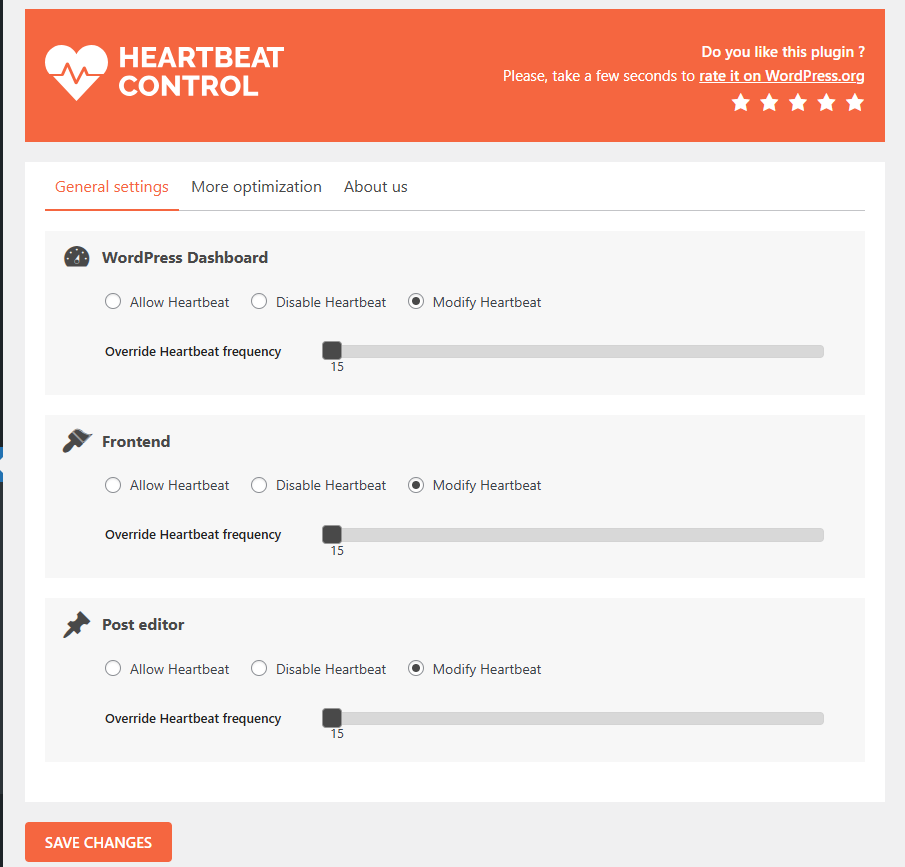
This small change alone often makes the wp-admin noticeably faster on budget hosting plans.
4. Deactivate and Audit Your Plugins
Too many plugins – or even one poorly coded one – can be the sole reason your WordPress backend is slow.
How to find the culprit:
- Install the free Query Monitor plugin
- Once activated, look at the top admin bar – it shows database queries, PHP errors, and HTTP requests per page
- Navigate through different wp-admin pages and watch which ones spike
- The “Queries” and “HTTP API Calls” tabs will usually point to the slow plugin direct
What to do:
- Deactivate plugins one by one and reload the admin page after each – note when the speed improves
- Remove plugins you installed but no longer use
- Replace heavy all-in-one plugins with lightweight alternatives when possible
For reference, check out our guide on essential WordPress plugins every new website needs – it covers which types of plugins to keep and which to avoid.
5. Clean Up Your WordPress Database
Over time, your WordPress database fills up with data you do not need:
- Post revisions (WordPress saves a new revision every few seconds while you edit)
- Trashed posts and comments
- Spam comments
- Expired transients
- Orphaned plugin data left behind after plugin deletions
All of this extra data means WordPress has to dig through more rows every time it queries the database – which slows down the backend.
The fastest fix: use WP-Optimize (free plugin)
- Install and activate WP-Optimize
- Go to WP-Optimize > Database
- Check the items you want to clean (post revisions, spam, transients, etc.)
- Click “Run all selected optimizations”
Pro Tip: Always take a database backup before running any cleanup. Use a plugin like UpdraftPlus to do this in under two minutes.
Also limit future revisions by adding this line to your wp-config.php file:
define('WP_POST_REVISIONS', 3);This keeps only the last 3 revisions of any post instead of an unlimited number.
6. Enable Object Caching with Redis or Memcached
By default, WordPress runs fresh database queries on every page load – even for the same data. Object caching stores the results of those queries in memory so they do not need to be repeated.
This makes a dramatic difference for the WordPress admin, especially on sites with a lot of content or custom post types.
How to enable it:
- Many managed WordPress hosts (like Kinsta, WP Engine, and some Hostinger plans) include Redis caching in their control panel – just toggle it on
- On other hosts, you can use the Redis Object Cache free plugin once your host enables Redis support
If your host does not support Redis, ask them – or check if Memcached is available as an alternative.
7. Disable Admin-Side Scripts from Unnecessary Plugins
Some plugins load their JavaScript and CSS files on every single admin page – even when you are nowhere near that plugin’s settings. This adds unnecessary weight to every backend page load.
How to check and fix this:
- Install Asset CleanUp: Page Speed Booster (free version is enough)
- It shows you all scripts and styles loading on the current page
- You can disable specific plugin assets on admin pages where they are not needed
This is an advanced fix but can shave off real loading time, especially when you have 15+ plugins active.
8. Increase WordPress Memory Limit
Sometimes WordPress simply does not have enough PHP memory allocated to run the admin efficiently – especially when multiple plugins are active.
Check your current limit:
Go to WordPress Dashboard > Tools > Site Health > Info > Server and look for “PHP memory limit.”
If it is set to 64MB or lower, increase it by adding this line to your wp-config.php:
define('WP_MEMORY_LIMIT', '256M');If this line is already there but you are still hitting limits, contact your host to increase the server-level PHP memory allocation.
9. Check for Slow External HTTP Requests
Some plugins make outgoing HTTP requests on every admin page – checking for license updates, pulling remote data, or pinging third-party APIs. When those external servers are slow, your entire admin page waits.
Query Monitor (mentioned earlier) shows these under its “HTTP API Calls” tab. If you see calls taking 1-3+ seconds, identify which plugin is making them and either:
- Configure the plugin to reduce call frequency
- Replace it with a self-hosted alternative
- Contact the plugin developer
This is an often-overlooked cause of dashboard lag that even experienced WordPress users miss.
10. Use a Quality Caching Plugin (Even for the Backend)
Most caching plugins are set up to speed up the frontend only. But some – like WP Rocket or W3 Total Cache – include features that also benefit the admin:
- Database query caching
- Object caching integration
- Minification of admin assets
If you do not have a caching plugin yet, check out our detailed comparison of the best caching plugins for WordPress to find the right fit for your setup.
Common Mistakes That Keep Your WordPress Admin Slow
Even after making some fixes, many users still leave these problems in place:
- Keeping deactivated plugins installed – even deactivated plugins can leave database tables and scheduled tasks running in the background
- Ignoring PHP version – this is probably the single most impactful change you can make, and most beginners skip it
- Running daily database backups to the same server – this spikes server load and can slow the admin during backup windows
- Using a page builder plugin sitewide – tools like Elementor and Divi load heavy assets on every page, including admin pages. Read our Elementor vs Gutenberg comparison to see if a lighter alternative makes sense for you
- Ignoring WordPress security issues – malware and brute-force attacks create enormous server load. A hacked site will often feel slow across the board. See our WordPress security guide for how to protect your site
A Quick Checklist: Slow WordPress Admin Fix Summary
Here is a fast reference for everything covered above:
- Switch to PHP 8.1 or 8.2 in your hosting panel
- Test and upgrade your hosting if server response is the bottleneck
- Slow down or disable the Heartbeat API
- Audit plugins with Query Monitor and remove unused ones
- Clean the database with WP-Optimize
- Enable Redis or Memcached object caching
- Increase WP memory limit to 256MB
- Disable unnecessary plugin scripts on admin pages
- Check for slow external HTTP requests
- Add or configure a caching plugin
Even completing 3-4 of these steps will produce a visible difference in your admin speed.
Frequently Ask Questions (FAQ)
Why is my wp-admin so slow even with few plugins?
Even with few plugins, your admin can be slow due to outdated PHP, insufficient server memory, a bloated database, or poor hosting. The first things to check are your PHP version and server response time – both have a larger impact than most people expect.
Does caching help fix WordPress backend slow loading?
Frontend caching does not directly help the wp-admin, but object caching (Redis or Memcached) does. It reduces the number of database queries WordPress needs to run on every admin page, which noticeably improves backend performance.
How do I know which plugin is slowing down my admin dashboard?
Install the free Query Monitor plugin. It shows you a breakdown of database queries, HTTP requests, and load time by component – so you can trace slowness directly to a specific plugin or theme function.
Can bad hosting cause wp-admin to be slow?
Absolutely – and it is often the main cause. Shared hosting plans with oversold resources give WordPress very little to work with. If your server response time is above 600ms before you even log in, upgrading your hosting will produce the biggest improvement of any fix on this list.
Is it safe to disable the WordPress Heartbeat API?
Yes, for most users. The Heartbeat API powers autosave in the post editor and user session checks. Slowing it down (rather than fully disabling it) is the safest approach – set it to fire every 60 seconds instead of 15. Full disabling is fine if you save manually and do not need autosave.
How often should I clean my WordPress database?
For an active site, monthly database cleanups are a good habit. Use WP-Optimize to automate this on a schedule. Also set a WP_POST_REVISIONS limit in wp-config.php to prevent the database from growing uncontrollably between cleanups.
Conclusion
A slow WordPress admin is more than just annoying – it wastes your time every single day and can mask deeper problems with your site’s performance or security.
The good news is that most cases of a slow WordPress admin fix come down to a few specific issues: outdated PHP, too many plugins, a bloated database, or an underpowered host. Work through the checklist in this guide, and you will almost certainly find the culprit.
Start with the easy wins – update PHP, clean the database, and control the Heartbeat API. Then move on to object caching and plugin auditing if you need further improvement.
If you are still running on a slow shared host after trying everything here, it may simply be time for an upgrade. A host with LiteSpeed servers and proper resource allocation makes a permanent difference that no plugin can match.
Have questions or found a fix that worked for you? Drop a comment below – we read every one.
Also check out our related guides: