
How to Secure Your WordPress Website: A Complete WordPress Security Guide
Your WordPress site can be hacked in minutes if it is left unprotected – and most beginners do not realize this until it is too late. Attackers target WordPress sites around the clock using automated bots, and a single weak point is all they need to get in.
This complete WordPress security guide will walk you through every practical step to secure your WordPress website – from basic settings you can fix in five minutes to powerful plugins and hosting choices that add serious layers of protection. No technical experience required.
Let’s get your site locked down.
Why WordPress Security Should Be Your First Priority
WordPress powers over 40% of the web, which makes it the most popular – and most targeted – CMS on the planet. That popularity is a double-edged sword.
The good news? Most WordPress hacks are completely preventable. Studies by security researchers consistently show that the majority of compromised WordPress sites were breached through:
- Outdated plugins or themes
- Weak passwords
- Poor hosting environments
- No security plugin installed
This means that following a solid WordPress security guide like this one gives you a massive advantage over the average site owner who ignores these basics.
Step 1: Start With Secure WordPress Hosting
Security starts at the server level – before you even log into your WordPress dashboard. A cheap, shared hosting provider with no server-side protections is like renting a room with a broken lock.
Look for hosting that offers:
- PHP version control (always use PHP 8.1+ for security and performance)
- Automatic daily backups
- Built-in malware scanning
- Free SSL certificates
- Firewall and DDoS protection at the server level
Recommended host: Hostinger offers all of the above with affordable plans, LiteSpeed servers, and a one-click WordPress installer. It is one of the most beginner-friendly yet security-conscious hosts available – and a solid starting point for anyone building a WordPress site. If you are not already self-hosted, check out our guide on how to install WordPress on any hosting to get started the right way.
Step 2: Keep WordPress, Themes, and Plugins Updated
This is the single most impactful thing you can do. Outdated software is responsible for a large portion of successful WordPress attacks.
WordPress core, themes, and plugins regularly release security patches. The moment a vulnerability is discovered – even if it is fixed in an update – hackers write automated scripts to scan for sites still running the old version.
How to stay updated:
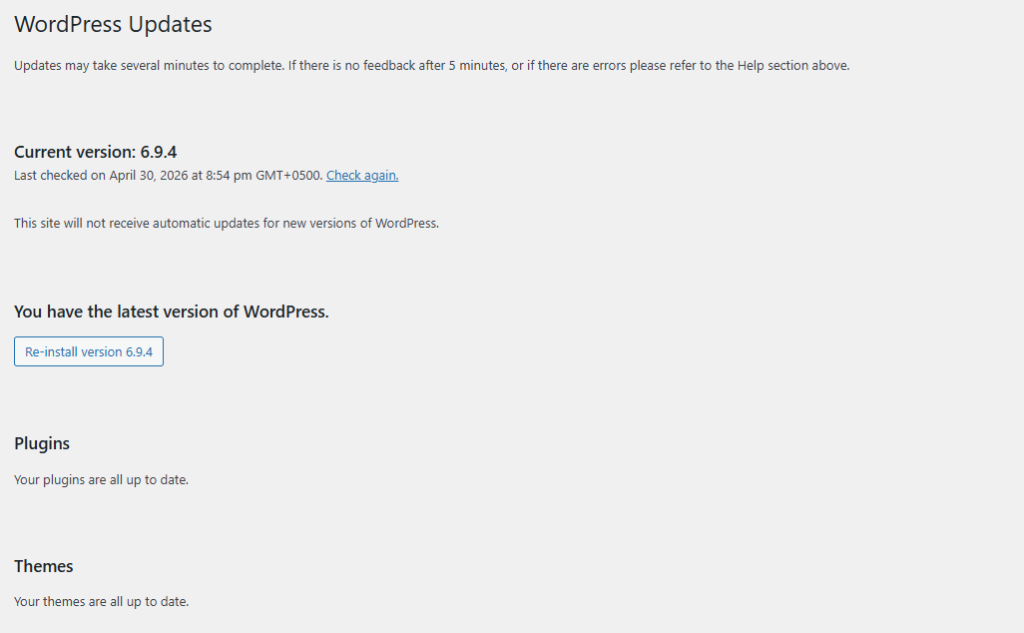
- Go to Dashboard > Updates in your WordPress admin
- Update WordPress core first, then plugins, then themes
- Enable auto-updates for trusted plugins (you can do this from the Plugins list)
- Delete any plugins or themes you are not actively using – inactive does not mean safe
Pro tip: Before updating, always take a backup. One-click backup tools like UpdraftPlus make this painless and take less than two minutes.
Step 3: Use Strong Passwords and Usernames
This sounds basic because it is – and yet it is one of the most commonly exploited weaknesses. Brute force attacks work by guessing username and password combinations, sometimes thousands per minute.
Mistakes to avoid:
- Using “admin” as your username (this is the first username bots try)
- Using your site name or your own name as a password
- Reusing passwords from other accounts
What to do instead:
- Create a username that is not obvious or publicly visible
- Use a password manager like Bitwarden or 1Password to generate and store strong passwords
- Go to Users > Your Profile and make sure your display name is different from your login username
A strong password looks something like: Gx7!mQ#2pLw9kRn – random, long, and impossible to guess.
Step 4: Install a WordPress Security Plugin
A dedicated WordPress security plugin acts like a security guard for your site – monitoring for threats, blocking suspicious login attempts, scanning for malware, and alerting you when something looks wrong.
Here are the most trusted options:
Wordfence Security (Free + Premium)
Wordfence is the most widely used WordPress security plugin for good reason. The free version includes:
- A Web Application Firewall (WAF)
- Malware scanner
- Login security with two-factor authentication
- Real-time IP blocking for known attackers
The premium version adds real-time firewall rules and malware signatures. Worth it for e-commerce or high-traffic sites.
Sucuri Security (Free + Premium)
Sucuri is a top choice for malware cleanup and website firewall. Their free plugin gives you:
- Security activity auditing
- File integrity monitoring
- Post-hack security hardening
If your site ever gets hacked, Sucuri’s team can help clean it up as part of their premium plan.
iThemes Security (Now Solid Security)
Good for beginners. It walks you through a setup wizard that activates key protections automatically – great if you prefer not to configure things manually.
Which should you choose? For most beginners, Wordfence Free is the best starting point. Install it, run a scan immediately, and follow its setup wizard.
Also make sure your essential WordPress plugins list is lean and from reputable developers only – too many plugins from unknown sources is a security risk in itself.
Step 5: Enable Two-Factor Authentication (2FA)
Passwords alone are not enough. Two-factor authentication means that even if someone steals your password, they still cannot log in without a second code – usually from an app on your phone.
How to set it up:
- Install Wordfence or a dedicated 2FA plugin like WP 2FA
- Go to the plugin settings and enable 2FA for administrator accounts
- Scan the QR code with an authenticator app like Google Authenticator or Authy
- From now on, logins will require the one-time code
This single step blocks the vast majority of brute force and credential stuffing attacks.
Step 6: Limit Login Attempts
By default, WordPress allows unlimited login attempts. This is exactly what brute force bots rely on – trying thousands of password combinations until one works.
Limiting login attempts shuts this down fast.
How to do it:
- Wordfence handles this automatically once installed
- Alternatively, install the free Limit Login Attempts Reloaded plugin
- Set lockout after 3-5 failed attempts, with a lockout duration of 20-30 minutes
Step 7: Change Your WordPress Login URL
The default WordPress login page is at yoursite.com/wp-admin. Every bot on the internet knows this. Moving it to a custom URL like yoursite.com/my-secret-login immediately cuts the volume of automated attacks hitting your login page.
Use a plugin like WPS Hide Login (free, lightweight, highly rated) to do this in under two minutes.
Pro tip: Write down or save your new login URL somewhere safe. If you forget it, you can still access your site via FTP or your hosting panel – but it is an unnecessary headache.
Step 8: Install an SSL Certificate (HTTPS)
If your site still loads on http:// instead of https://, data sent between your visitors and your server is unencrypted. This is a serious security risk and also hurts your SEO rankings.
An SSL certificate encrypts all data in transit.
How to get one:
- Most quality hosts like Hostinger include a free Let’s Encrypt SSL with every plan
- In your hosting control panel, activate SSL with one click
- Then in WordPress, install the Really Simple SSL plugin to force all traffic to HTTPS automatically
After this, your site will show a padlock in the browser – which also builds trust with your visitors.
Step 9: Set Up Regular Backups
Security is not just about preventing attacks – it is also about recovering from them. If you have a clean, recent backup, a hack becomes a minor inconvenience instead of a disaster.
Best free backup plugin: UpdraftPlus
- Go to Plugins > Add New and install UpdraftPlus
- Configure it to back up automatically (daily or weekly depending on how often you update content)
- Store backups offsite – in Google Drive, Dropbox, or Amazon S3 – never just on your server
If anything goes wrong, you can restore your entire site with a single click.
Step 10: Harden Your WordPress Configuration
These are quick technical tweaks that close common attack vectors without needing a developer.
Disable XML-RPC
XML-RPC is an older WordPress feature that is frequently exploited for brute force attacks. Unless you specifically need it (rare), disable it.
Add this to your .htaccess file:
# Disable XML-RPC

  Order Deny,Allow
  Deny from all
Or use a plugin like Wordfence or Disable XML-RPC to handle it without touching code.
Hide Your WordPress Version
Displaying your WordPress version in the source code tells hackers exactly which vulnerabilities to target. Add this to your theme’s functions.php file:
php
remove_action('wp_head', 'wp_generator');Protect wp-config.php
The wp-config.php file contains your database credentials. Add this to your .htaccess to block direct access:
  order allow,deny
  deny from all
Note: If you are uncomfortable editing these files, the Wordfence or iThemes Security plugins can apply many of these hardening steps automatically through their dashboard.
Step 11: Monitor Your Site Regularly
Security is not a one-time setup – it is an ongoing habit. Set aside time once a month to:
- Run a malware scan (Wordfence or Sucuri)
- Check for pending updates
- Review your user accounts and remove any you do not recognize
- Look through your security plugin’s log for suspicious activity
Some security plugins can send you email alerts when they detect something unusual – enable this feature so you are not relying on manual checks alone.
WordPress Security Checklist
Save this or print it – run through it right now if you have not already.
- Hosting is on a reputable provider with SSL, backups, and a firewall
- WordPress core is updated to the latest version
- All plugins and themes are updated
- Unused plugins and themes are deleted
- Admin username is not “admin”
- Strong, unique password is in use
- Two-factor authentication is enabled
- Login attempts are limited
- WordPress login URL has been changed
- SSL certificate is active (site loads on HTTPS)
- A security plugin (Wordfence or Sucuri) is installed and configured
- Regular backups are scheduled and stored offsite
- XML-RPC is disabled
- WordPress version is hidden from source code
- wp-config.php is protected via .htaccess
Common WordPress Security Mistakes to Avoid
Even experienced users make these errors:
1. Trusting plugins from unknown sources Only install plugins from the official WordPress.org repository or from well-known premium marketplaces like ThemeForest or CodeCanyon. Nulled (pirated) plugins almost always contain malware.
2. Ignoring security alerts If your security plugin sends you an email alert, do not ignore it. Even a false alarm is worth five minutes of investigation.
3. Using the same password across sites If one site gets breached and your credentials are leaked, attackers will try that same combination on your WordPress login. Use a unique password for every account.
4. Not testing your backups Having a backup means nothing if it does not actually work when you need it. Restore your backup to a staging environment at least once every few months to confirm it is valid.
5. Giving too many users admin access Every user with admin access is a potential entry point. Use the principle of least privilege – give users only the role they need (Editor, Author, Contributor) and reserve Administrator for yourself.
For more on managing your site efficiently, take a look at our guide on common WordPress errors – many of them are directly linked to security misconfigurations.
Frequently Asked Questions
Is WordPress secure out of the box?
WordPress core is reasonably secure on its own, but the default installation leaves several vulnerabilities open – like unlimited login attempts and a predictable login URL. You need to apply additional hardening steps (like the ones in this guide) to make it truly safe.
What is the best free WordPress security plugin to prevent hacking?
Wordfence Security is widely considered the best free option. It includes a firewall, malware scanner, and login protection in one package – and it is beginner-friendly enough that you can get it set up in under ten minutes.
How do I know if my WordPress site has been hacked?
Common signs include: unexpected redirects to other websites, new admin users you did not create, Google showing a “This site may be hacked” warning in search results, your hosting provider suspending your account, or your security plugin flagging modified files. Run a Wordfence scan immediately if you suspect a problem.
Do I need a security plugin if my host already has a firewall?
Yes. A server-level firewall and a WordPress-level security plugin protect different things. The host firewall filters incoming traffic at the network level, while a plugin like Wordfence understands WordPress-specific attack patterns. You want both layers working together.
How often should I back up my WordPress site?
It depends on how frequently you publish content. If you post daily, back up daily. If you update your site weekly, weekly backups are fine. At minimum, always take a manual backup before any major plugin, theme, or core update.
Can strong hosting alone keep my WordPress site secure?
Good hosting significantly reduces your risk, but no host can protect you from weak passwords, outdated plugins, or malware introduced through nulled themes. Security is a layered approach – your host is one layer, but not the only one.
Conclusion
Securing a WordPress website does not require a background in cybersecurity. It requires consistent habits and the right tools in place.
To recap what we covered:
- Start with a secure host that includes SSL and daily backups
- Keep everything updated – core, plugins, and themes
- Use strong, unique credentials and enable two-factor authentication
- Install a security plugin like Wordfence and let it do the heavy lifting
- Limit login attempts and move your login URL
- Back up regularly and store backups offsite
- Apply basic hardening steps to close common vulnerabilities
Go through the checklist above right now and knock out anything you have not done yet. Even completing half of these steps puts your site in a far stronger position than the majority of WordPress sites out there.
If you are just getting started with WordPress or need to level up your setup, check out our post on essential WordPress plugins every new website needs and our guide on how to speed up your WordPress website – because a fast, secure site is the foundation of everything.
Have a question about securing your site? Drop it in the comments below – we read and respond to every one.