
If you just submitted your sitemap in Google Search Console and got back the message “Sitemap could not be read” or “XML sitemap error,” you are not alone. This is one of the most frustrating GSC sitemap issues WordPress site owners run into, especially after switching plugins or changing their permalink structure.
The good news is that this XML sitemap error in WordPress almost always has a clear cause, and it can be fixed without touching a single line of server code – as long as you know where to look. In this guide, I will walk you through every common reason this error appears and give you step-by-step solutions to get your sitemap working again.
Table of Contents
What Does “XML Sitemap Could Not Be Read” Actually Mean?
Before jumping into fixes, it helps to understand what Google is actually telling you.
When Google Search Console reports this error, it means Googlebot tried to visit your sitemap URL (usually something like yoursite.com/sitemap.xml or yoursite.com/sitemap_index.xml) and either got no response, got a non-XML response, or got a page with broken XML code.
This is different from a sitemap simply not being found (404). The sitemap URL might exist but return something Google cannot parse as valid XML.
Common symptoms include:
- “Sitemap could not be fetched” in Google Search Console
- Sitemap URL loads a blank page or a 404 error in your browser
- Sitemap URL shows raw text or HTML instead of clean XML
- Sitemap was working before but broke after a plugin update or migration
Step 1: Check If Your Sitemap URL Is Accessible
The first thing to do is visit your sitemap URL directly in your browser. Most WordPress sites using Yoast SEO or Rank Math will have one of these:
yoursite.com/sitemap.xmlyoursite.com/sitemap_index.xmlyoursite.com/wp-sitemap.xml(WordPress core default)
If the page shows a 404 error or loads a blank screen, the sitemap is not being generated at all. If it loads HTML or a theme page, there is a routing conflict. If it loads partially broken XML, there may be a plugin or encoding issue.
Pro tip: Open the URL in an incognito browser window to rule out any caching from your browser.
Step 2: Flush Your WordPress Permalinks
This is the simplest fix and works surprisingly often. A corrupted .htaccess rewrite rule can block the sitemap URL from resolving correctly.
Here is how to do it:
- Go to WordPress Dashboard > Settings > Permalinks
- Do NOT change anything
- Just click Save Changes
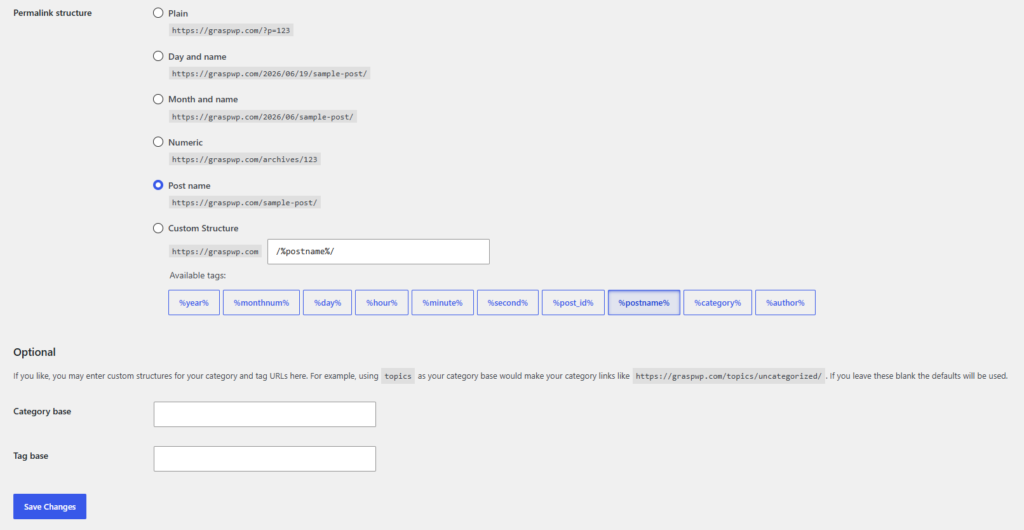
This regenerates your .htaccess file and resets the URL rewrite rules. After doing this, revisit your sitemap URL in the browser and check if it loads properly.
This fix resolves the XML sitemap error in WordPress in a large percentage of cases, especially after migrations or domain changes.
Step 3: Check for a Plugin Conflict
A plugin conflict is the second most common reason for a sitemap not working on WordPress. Two SEO plugins trying to generate the same sitemap URL at the same time will almost always cause one to break.
For example, if you have both Yoast SEO and Rank Math installed, they will conflict with each other. Even having Yoast SEO active alongside the default WordPress sitemap (added in WordPress 5.5) can cause issues.
To identify the problem:
- Go to Plugins > Installed Plugins
- Deactivate all plugins except your primary SEO plugin
- Visit your sitemap URL again
- If it loads correctly, reactivate plugins one by one until the conflict reappears
If you are using Rank Math, make sure the WordPress default sitemap is disabled. In Rank Math > General Settings > Sitemap, Rank Math will automatically disable the default WordPress sitemap when its own sitemap is enabled. But if the setting got toggled somehow, re-enable it.
If you want a reliable comparison of SEO plugins to choose just one, read our guide on <a href=”https://graspwp.com/rank-math-vs-yoast-seo/”>Rank Math vs Yoast SEO</a>.
Step 4: Disable WordPress Core Sitemap (If Using a Plugin)
WordPress has had a built-in sitemap generator since version 5.5. If you are using Yoast SEO or Rank Math, you do not need both running at the same time.
To disable the WordPress core sitemap manually, add this code to your theme’s functions.php file or a site-specific plugin:
php
remove_action( 'init', 'wp_sitemaps_get_server' );Or if you prefer not to touch code, both Rank Math and Yoast SEO disable the core sitemap automatically when their own sitemap feature is enabled. Just double-check the setting is actually on.
In Yoast SEO: SEO > General > Features > XML Sitemaps – make sure this is toggled ON.
In Rank Math: Rank Math > General Settings > Sitemap – make sure “Sitemap Index” is enabled.
Step 5: Clear Your Caching Plugin and CDN
Caching is another overlooked cause of this GSC sitemap issue. Your caching plugin might be serving an old or broken version of the sitemap.
Do the following:
- Go to your caching plugin settings (W3 Total Cache, WP Rocket, LiteSpeed Cache, etc.)
- Clear all cached files
- Also purge your CDN cache if you use Cloudflare or any other CDN
- Revisit the sitemap URL
If you use Cloudflare, log into your Cloudflare dashboard and go to Caching > Purge Cache > Purge Everything.
Pro tip: Some caching plugins cache the sitemap as a static file, which means updates to your posts do not reflect in the sitemap. Exclude the sitemap URL pattern (/sitemap*.xml) from caching rules in your plugin settings.
For more help with site speed and caching, check out our article on the <a href=”https://graspwp.com/best-caching-plugins-for-wordpress/”>best caching plugins for WordPress</a>.
Step 6: Check Your .htaccess File for Errors
A broken or incomplete .htaccess file will prevent WordPress from rewriting URLs, including sitemap URLs. This is especially common after migrations.
To check and fix it:
- Connect to your site via FTP or File Manager in your hosting control panel
- Download the
.htaccessfile from the root of your WordPress installation - Open it in a text editor and look for any unusual or corrupted entries
A clean WordPress .htaccess file should look like this:
# BEGIN WordPress
<IfModule mod_rewrite.c>
RewriteEngine On
RewriteBase /
RewriteRule ^index\.php$ - [L]
RewriteCond %{REQUEST_FILENAME} !-f
RewriteCond %{REQUEST_FILENAME} !-d
RewriteRule . /index.php [L]
</IfModule>
# END WordPress
If you see extra code between the BEGIN WordPress and END WordPress markers that does not look right, remove it. Then save and re-upload the file.
After that, go back to Settings > Permalinks and click Save Changes again to regenerate the file cleanly.
Step 7: Check for PHP Errors Breaking the Sitemap Output
A PHP error or warning appearing before the XML declaration will break the sitemap completely. Even a single character outputted before <?xml will make the file invalid.
This often happens when:
- A plugin or theme has a PHP error that outputs text or whitespace before the XML starts
WP_DEBUGis set totrueand errors are displayed on the page
To check for PHP errors:
- Add
define('WP_DEBUG', true); define('WP_DEBUG_LOG', true); define('WP_DEBUG_DISPLAY', false);to yourwp-config.php - Visit the sitemap URL
- Check
/wp-content/debug.logfor any errors
Fix any PHP errors you find, then disable debug mode by setting WP_DEBUG back to false.
Step 8: Check Server-Level Blocks (ModSecurity / Firewall Rules)
Sometimes the server itself blocks the sitemap URL. This is less common but happens on managed hosting environments with strict ModSecurity rules.
Signs this might be happening:
- Sitemap returns a 403 Forbidden error
- Works on staging but not on production
- Started happening after a hosting change
To check this, look at your server’s error log (usually accessible from the hosting control panel under “Error Logs”). Look for any 403 or 500 errors tied to the sitemap URL.
If your host does not give you access to error logs or makes it hard to manage server-level settings, it might be time to switch to a beginner-friendly host. Hostinger gives you full access to error logs, an intuitive control panel, and solid performance at an affordable price.
Step 9: Validate Your Sitemap Manually
Once you think the issue is fixed, validate the sitemap before submitting it to Google again.
Use these free tools:
- XML Sitemap Validator at xml-sitemaps.com/validate-xml-sitemap.html
- Google Search Console’s URL Inspection Tool – paste your sitemap URL and click “Test Live URL”
After validating:
- Go to Google Search Console > Sitemaps
- Remove the old sitemap submission
- Re-submit the sitemap URL fresh
Give Google 24 to 48 hours to re-crawl and update the status. If it was a temporary fetch error, it should resolve on its own after resubmission.
Step 10: Regenerate Your Sitemap Completely
If nothing else works, the nuclear option is to delete and regenerate your sitemap from scratch.
For Rank Math:
- Go to Rank Math > General Settings > Sitemap
- Toggle the sitemap OFF, save
- Toggle it back ON, save again
- Visit
yoursite.com/sitemap_index.xmlto confirm it loads
For Yoast SEO:
- Go to SEO > General > Features
- Toggle XML Sitemaps OFF, save
- Toggle it back ON, save
- Visit
yoursite.com/sitemap.xml
Yoast also lets you view the sitemap directly from SEO > General > Features by clicking the “See the XML sitemap” link. Use that link to confirm the sitemap is generating before resubmitting to GSC.
Common Mistakes That Cause This Error
Based on real experience managing WordPress sites, these are the most common mistakes that lead to a broken sitemap:
- Installing two SEO plugins at the same time – Always use only one
- Forgetting to flush permalinks after migration – Always do this first after moving a site
- Not excluding the sitemap from cache – Set your caching plugin to never cache sitemap URLs
- Leaving WP_DEBUG enabled on production – This can cause visible PHP warnings that corrupt XML output
- Ignoring server-level 403 errors – These look like site issues but are firewall blocks
For a broader look at WordPress issues and how to prevent them, our guide to <a href=”https://graspwp.com/common-wordpress-errors/”>common WordPress errors</a> is a solid resource to bookmark.
Frequently Ask Questions (FAQ)
Why does my sitemap show a blank page in WordPress?
A blank sitemap usually means a plugin conflict, a PHP error silently breaking the output, or a .htaccess rule blocking the sitemap URL from resolving. Start by flushing your permalinks and disabling all plugins except your SEO plugin.
How do I fix the “sitemap could not be fetched” error in Google Search Console?
First check if your sitemap URL is accessible in a browser. Then flush permalinks, clear your cache, and check for plugin conflicts. After fixing the issue, re-submit the sitemap in Google Search Console and allow 24 to 48 hours for Google to re-crawl it.
Can a caching plugin cause the XML sitemap error in WordPress?
Yes. If your caching plugin is serving a stale or broken version of the sitemap, Google will not be able to read it. Always exclude sitemap URLs (like /sitemap*.xml) from your caching rules, and purge the cache after making sitemap changes.
Does WordPress have a built-in sitemap I should disable?
Yes, since WordPress 5.5, a default sitemap is generated at yoursite.com/wp-sitemap.xml. If you use Yoast SEO or Rank Math, their sitemap features should automatically disable the core one. If not, you may end up with conflicting sitemaps, which can cause GSC sitemap issues.
Why did my sitemap stop working after migration?
Migration often resets or corrupts your .htaccess file, which breaks URL rewriting for sitemaps. The first fix to try after any migration is going to Settings > Permalinks and clicking Save Changes to regenerate .htaccess cleanly. Also read our guide on how to migrate your WordPress site to a new host for a complete migration checklist.
Is the XML sitemap error related to SEO rankings?
Not directly and immediately, but if Google cannot read your sitemap, it may take longer to discover new pages or updated content. This can indirectly slow down your rankings for new posts. A working sitemap is an important part of any solid WordPress SEO strategy.
Conclusion
The “XML sitemap could not be read” error in WordPress sounds technical, but in most cases it comes down to a few common culprits: permalink issues, plugin conflicts, caching problems, or a broken .htaccess file. Work through the steps in order and you will identify the problem quickly.
Here is a quick recap of what to check:
- Verify the sitemap URL loads in your browser
- Flush permalinks (Settings > Permalinks > Save Changes)
- Deactivate conflicting plugins
- Disable WordPress core sitemap if using an SEO plugin
- Clear your caching plugin and CDN
- Inspect and clean the
.htaccessfile - Check for PHP errors in
debug.log - Look for server-level 403 blocks
- Validate the sitemap with an online tool
- Resubmit to Google Search Console
Once your sitemap is back online, pair it with a strong SEO setup. If you have not already, read our comparison of <a href=”https://graspwp.com/rank-math-vs-yoast-seo/”>Rank Math vs Yoast SEO</a> to make sure you are using the best plugin for your needs.
Got your sitemap working again? Drop a comment below and let us know which step fixed it for you. If you are still stuck, describe your setup in the comments and we will help you troubleshoot.