
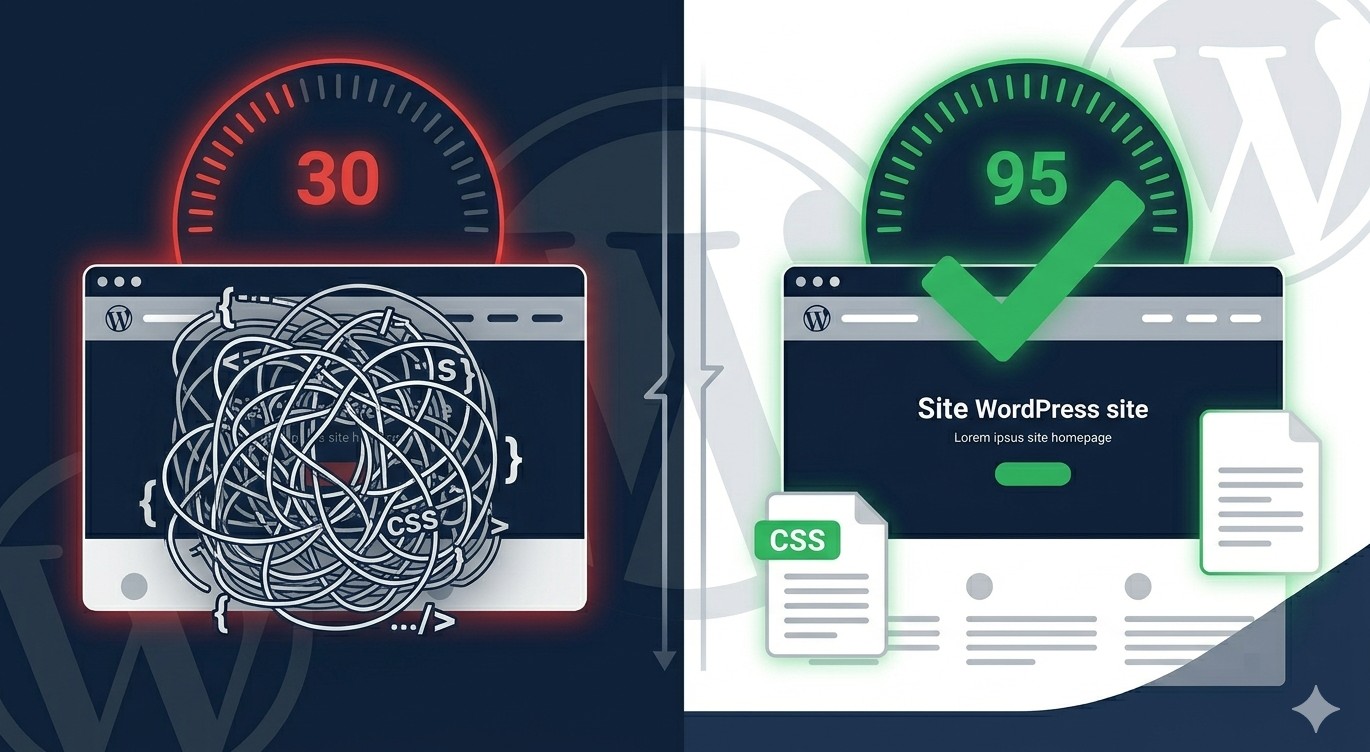
If your WordPress site is loading slowly, unused CSS in WordPress might be one of the biggest culprits you are ignoring. Every theme and plugin you install adds its own stylesheet – and a large chunk of those styles never even appear on your pages. They just sit there, adding weight to every page load.
This guide will walk you through exactly what unused CSS is, why it hurts your site performance, and the practical steps you can take to remove or defer it – whether you prefer a plugin or a more hands-on approach. No fluff, no filler – just a real, working process.
Table of Contents
What Is Unused CSS and Why Does It Matter?
When a browser loads your WordPress page, it downloads every CSS file linked in the page source – whether those styles are actually used on that page or not. A typical WordPress theme can load hundreds of lines of CSS for elements like mega menus, WooCommerce product pages, or blog archive layouts – even on a simple landing page where none of those elements exist.
This is what Google PageSpeed Insights flags as “Eliminate render-blocking resources” or “Reduce unused CSS.” It is not just a warning – it directly affects your Core Web Vitals score, specifically the Largest Contentful Paint (LCP) and First Input Delay (FID).
The real-world impact:
- Slower page load times (especially on mobile)
- Lower scores on Google PageSpeed Insights and GTmetrix
- Worse user experience and potentially lower search rankings
- Higher bounce rates from visitors who do not want to wait
Related: How to Speed Up Your WordPress Website
How to Identify Unused CSS in WordPress
Before you fix the problem, you need to see exactly how much unused CSS your site is loading.
Use Google PageSpeed Insights
Go to PageSpeed Insights and enter your URL. Scroll to the “Opportunities” section and look for “Reduce unused CSS.” It will show you which stylesheets have the most wasted bytes.
Use Chrome DevTools Coverage Tool
- Open your site in Google Chrome
- Press F12 to open DevTools
- Press Ctrl + Shift + P (or Cmd + Shift + P on Mac) and type “Coverage”
- Click “Start instrumenting coverage and reload page”
- After the page loads, you will see each CSS file with a red bar showing the unused percentage
This method gives you a file-by-file breakdown. A stylesheet that is 85% unused is a strong candidate for removal or deferral.
Method 1: Remove Unused CSS Using a Plugin (Recommended for Beginners)
For most WordPress users, using a plugin is the safest and most practical approach. Here are the best options:
Option A: WP Rocket (Premium)
WP Rocket is one of the most trusted WordPress performance plugins available. It includes a built-in “Remove Unused CSS” feature that works by loading each page in the background, detecting which styles are actually used, and building a leaner, page-specific stylesheet.
How to enable it:
- Install and activate WP Rocket
- Go to Settings > WP Rocket > File Optimization
- Scroll to the CSS section
- Enable “Remove Unused CSS”
- Save and clear your cache
Pro Tip: After enabling this feature, visit all key pages on your site (homepage, blog, shop, contact) to let WP Rocket generate optimized stylesheets for each one. If anything breaks visually, you can whitelist specific CSS rules from within WP Rocket settings.
Option B: LiteSpeed Cache (Free)
If you are on a LiteSpeed server (common with many shared hosting providers), the free LiteSpeed Cache plugin includes a CSS optimization feature.
- Go to LiteSpeed Cache > Page Optimization
- Under CSS Settings, enable “CSS Minify” and “CSS Combine”
- Also enable “Load CSS Asynchronously” to defer non-critical styles
Option C: Perfmatters (Premium – Lightweight)
Perfmatters is a lean performance plugin that lets you disable specific scripts and styles on a per-page or site-wide basis. It is ideal if you know which plugin stylesheets are being loaded unnecessarily.
For example, if you use a contact form plugin, its CSS is probably loading on every page – but it only needs to load on your Contact page. Perfmatters lets you disable it everywhere else with a single toggle.
Method 2: Defer CSS Loading Manually (Intermediate)
If you do not want to use a premium plugin, you can defer non-critical CSS manually. This does not delete unused CSS, but it prevents it from blocking page rendering – which achieves a similar improvement in PageSpeed scores.
Add the following to your theme’s functions.php file or a custom plugin:
function graspwp_defer_css( $html, $handle, $href, $media ) {
if ( is_admin() ) return $html;
return '' .
'';
}
add_filter( 'style_loader_tag', 'graspwp_defer_css', 10, 4 );Warning: Do not defer your main theme stylesheet (usually
style.css) using this method – it will cause a flash of unstyled content (FOUC) before the CSS loads. Apply this selectively to plugin stylesheets you know are non-critical.
Method 3: Dequeue Unnecessary Plugin CSS (Intermediate to Advanced)
Many plugins load their CSS on every page regardless of whether they are needed there. You can dequeue these stylesheets using WordPress hooks.
Here is an example – suppose you are using the WooCommerce plugin but a particular stylesheet is loading on non-shop pages:
function graspwp_remove_woo_css() {
    if ( ! is_woocommerce() && ! is_cart() && ! is_checkout() ) {
        wp_dequeue_style( 'woocommerce-general' );
        wp_dequeue_style( 'woocommerce-layout' );
        wp_dequeue_style( 'woocommerce-smallscreen' );
    }
}
add_action( 'wp_enqueue_scripts', 'graspwp_remove_woo_css', 99 );
Add this to your child theme’s functions.php. Always use a child theme – never edit your parent theme directly, or your changes will be overwritten on the next theme update.
Common stylesheets you might safely dequeue:
- Contact form plugin CSS on pages with no forms
- Slider CSS on pages with no sliders
- WooCommerce CSS on non-shop pages
- Social sharing plugin CSS on pages where sharing is disabled
Method 4: Use a Page Builder with Built-in CSS Controls
If you are building new pages or redesigning your site, choosing the right page builder can significantly reduce how much CSS your site loads by default.
Builders like Bricks Builder or GeneratePress (with GenerateBlocks) are known for generating clean, minimal CSS. They only output styles for elements that are actually used on a given page.
Compare this to older, heavier page builders that load hundreds of kilobytes of CSS framework styles on every single page regardless of content.
Related: Best WordPress Page Builders Compared
What About Critical CSS?
Eliminating unused CSS is one side of the coin. The other is ensuring your critical CSS – the styles needed to render above-the-fold content – loads as fast as possible.
Critical CSS means inlining the minimum styles needed to display what a visitor sees without scrolling, then loading the rest asynchronously. WP Rocket handles this automatically when you enable its “Load CSS Asynchronously” option alongside the unused CSS removal feature.
If you are manually managing CSS, tools like criticalcss.com or the npm package critical can generate your critical CSS for you.
Related: How to Reduce TTFB in WordPress
Common Mistakes to Avoid
Working with CSS optimization is easy to get wrong. Here are the mistakes I see most often:
1. Enabling unused CSS removal without testing
Always test on a staging site first. Some CSS that looks “unused” is actually loaded dynamically via JavaScript – removing it will break things like dropdown menus or modal popups.
2. Using too many optimization plugins at the same time
Running WP Rocket, W3 Total Cache, and Autoptimize together will create conflicts. Stick with one performance plugin. Related: Best Caching Plugins for WordPress
3. Ignoring the above-the-fold experience
Deferring all CSS without extracting critical styles can make your site look unstyled for a split second on slow connections. Always pair deferred CSS with critical CSS inlining.
4. Not checking mobile separately
Mobile and desktop often load different elements. Run your PageSpeed tests on both – Google’s mobile score is the one that matters more for rankings.
5. Editing the parent theme directly
If you manually dequeue styles or add CSS code, always do it through a child theme or a plugin like Code Snippets. Direct edits to a parent theme are wiped out on every update.
Step-by-Step Action Plan Summary
Here is a quick checklist to follow:
- Run your site through Google PageSpeed Insights and identify unused CSS files
- Check the Chrome DevTools Coverage tab to see exact percentages per file
- If you are a beginner – install WP Rocket or LiteSpeed Cache and enable unused CSS removal
- If you prefer manual control – dequeue unnecessary plugin stylesheets in
functions.php - Pair CSS removal with a caching plugin for maximum performance gains
- Test every key page after changes – homepage, blog, shop, and any pages with forms or sliders
- Re-run PageSpeed Insights to confirm improvement
If you are still on shared hosting that slows your site no matter how much you optimize, it might be time to upgrade. Hostinger offers fast SSD-powered hosting with LiteSpeed servers built in – which means LiteSpeed Cache works out of the box, making CSS optimization much more effective.
Frequently Ask Questions (FAQ)
Will removing unused CSS break my website design?
It can, if done carelessly. Some CSS rules appear unused to automated tools but are actually triggered by JavaScript interactions like hover effects, modals, or sticky headers. Always test on a staging copy of your site before applying changes to live. Use the whitelist/safelist feature in WP Rocket if something breaks.
How much can removing unused CSS improve my PageSpeed score?
It varies by site, but it is common to see improvements of 10 to 30 points on the PageSpeed mobile score after addressing unused CSS – especially on sites running multiple plugins. Paired with caching and image optimization, the gains can be significant.
Is it safe to use the “Remove Unused CSS” feature in WP Rocket?
Generally yes, and it is one of the more reliable implementations available. WP Rocket loads each page in a headless browser to detect which styles are actually applied, which is more accurate than simple static analysis. That said, test your site after enabling it.
Does Google penalize sites for unused CSS?
Not directly – Google does not penalize you for having extra CSS. However, it does factor in Core Web Vitals (especially LCP and FID) into search rankings, and unused CSS negatively affects those scores by blocking rendering. So the indirect ranking impact is real.
Can I reduce CSS size in WordPress without a plugin?
Yes. You can manually dequeue unnecessary stylesheets using wp_dequeue_style() in your functions.php file, and you can use tools like PurgeCSS on your local machine to strip unused rules from custom stylesheets before uploading them. It takes more technical knowledge but gives you full control.
What is the difference between minifying CSS and removing unused CSS?
Minification compresses existing CSS by removing whitespace, comments, and redundant characters – but it keeps all the rules intact. Removing unused CSS actually eliminates rules that are never applied on a given page. Both reduce CSS file size, but unused CSS removal has a bigger impact on render performance.
Conclusion
Unused CSS in WordPress is a common but very fixable performance issue. Whether you go the plugin route with WP Rocket or LiteSpeed Cache, or take the manual approach with wp_dequeue_style(), every kilobyte you remove means faster load times, better Core Web Vitals scores, and a smoother experience for your visitors.
Start by identifying what is actually loading on your pages using PageSpeed Insights or Chrome DevTools. Then pick the method that matches your skill level and take it one step at a time. Even small improvements add up quickly.
If you found this guide useful, check out our related tutorials:
- How to Speed Up Your WordPress Website
- How to Optimize Images in WordPress
- Best Caching Plugins for WordPress
- How to Fix a Slow WordPress Admin
Have a question or found a method that worked for your site? Drop a comment below – I read every one.