
Losing your WordPress site overnight – without a backup – is one of the worst things that can happen to a website owner. It takes seconds for a failed update, a hack, or a hosting mishap to wipe out months of work. That’s exactly why choosing the right backup plugin isn’t optional; it’s essential.
In this guide, you’ll find the best WordPress backup plugins available right now – both free and paid – with honest reviews, key features, and clear recommendations based on real-world use. Whether you’re a complete beginner or an intermediate WordPress user, you’ll know exactly which plugin fits your needs by the end.
Table of Contents
Why You Need a WordPress Backup Plugin
Your hosting provider may offer backups, but they are not always reliable, frequent, or free to restore. A dedicated backup plugin gives you full control.
Here’s what can go wrong without a backup:
- A plugin update breaks your entire site
- Your hosting account gets suspended or hacked
- You accidentally delete important content or settings
- A theme conflict corrupts your database
If any of these happen and you have no backup, recovery can take days – or may not be possible at all. A good backup plugin automates the process and stores copies in safe locations like Google Drive, Dropbox, or Amazon S3.
Also, if you ever plan to migrate your WordPress site to a new host, having a clean backup is the first step.
What to Look for in a WordPress Backup Plugin
Before jumping into the list, here’s what actually matters when comparing backup plugins:
- Backup frequency – Can you schedule daily or real-time backups?
- Storage destinations – Does it support cloud storage like Google Drive or Dropbox?
- One-click restore – How easy is it to restore WordPress backup from the plugin?
- Database + files coverage – Does it back up both your database and wp-content folder?
- Free vs paid limits – What do you actually get without paying?
With those criteria in mind, let’s look at the top options.
Best WordPress Backup Plugins Compared
1. UpdraftPlus – Best Overall (Free & Paid)
UpdraftPlus is the most popular WordPress backup plugin with over 3 million active installations. It’s the go-to choice for most WordPress users, and for good reason.
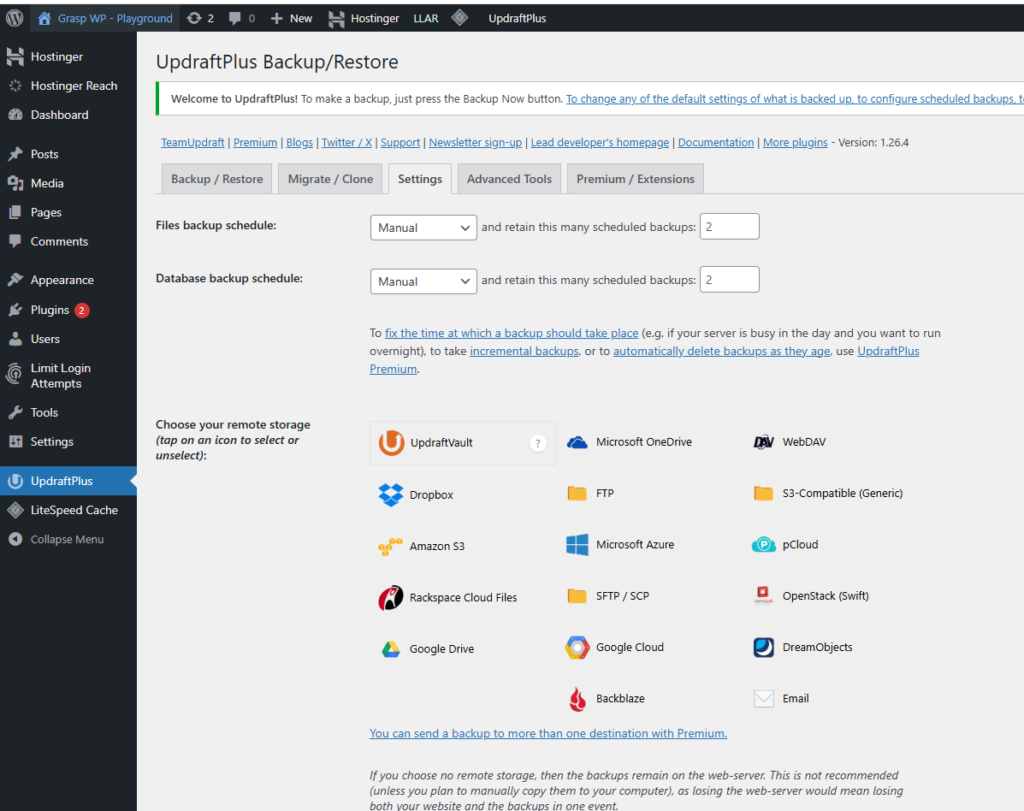
Key Features:
- Schedule automatic backups (daily, weekly, monthly)
- Store backups in Google Drive, Dropbox, S3, OneDrive, FTP, and more
- Separate backup for files and database
- One-click restore directly from the plugin dashboard
- Multisite support (Premium)
- Incremental backups (Premium)
UpdraftPlus Free vs Premium:
The free version covers most essential needs. You get scheduled backups, cloud storage support, and manual restores. The premium version adds incremental backups, multisite support, advanced reporting, and priority support.
UpdraftPlus Review – Is It Worth It?
From personal use, the free version of UpdraftPlus handles 90% of what a small to mid-size WordPress site needs. The setup takes under 10 minutes. You connect it to Google Drive, set a daily schedule, and you’re done. Restoring from a backup is genuinely straightforward – you select the backup file, choose what to restore, and click go.
One thing to watch: the free version stores backups in your hosting server by default. Always connect it to external cloud storage to avoid losing both your site and backup at once.
Pricing: Free | Premium starts at $70/year
2. Jetpack VaultPress Backup – Best for Real-Time Backups
Jetpack’s VaultPress Backup (formerly just VaultPress) is a premium-first solution that offers real-time, activity-log-backed WordPress backups. It’s ideal for eCommerce sites or any site that changes constantly.
Key Features:
- Real-time backups triggered by every site change
- Activity log to see exactly what changed and when
- One-click restore to any point in time
- Offsite storage managed by Automattic (WordPress.com’s parent company)
- Works well with WooCommerce stores
Who Should Use It:
If your WordPress site processes orders, contact form submissions, or gets updated multiple times a day, real-time backups mean you never lose more than a few minutes of data. This is where Jetpack clearly outperforms scheduled backup plugins.
Limitations: No free backup tier. You need a paid Jetpack plan, which starts at around $9.95/month. It’s also harder to move backups to custom storage.
Pricing: Paid only – starts at ~$9.95/month
3. BackupBuddy – Best Premium All-in-One Option
BackupBuddy by iThemes has been around for over a decade and is a solid choice for users who want a complete backup and migration solution in one plugin.
Key Features:
- Full site backups (database, themes, plugins, uploads, core files)
- BackupBuddy Stash for remote storage (included)
- Schedule-based and real-time options
- ImportBuddy tool for easy migration and restore
- Malware scanning (basic)
Practical Note:
BackupBuddy shines when you need to move a WordPress site. The ImportBuddy restore file lets you drop your site onto a new server with minimal technical effort. It’s particularly helpful if you’re switching hosts and want a clean transfer process.
Pricing: Starts at $99/year (no free version)
4. Duplicator Pro – Best for Site Migration + Backup
Duplicator started as a migration tool but has evolved into a capable backup solution. The free version on WordPress.org is genuinely useful.
Key Features:
- Create full-site “packages” (backup + migration in one)
- Schedule backups (Pro)
- Cloud storage support including Google Drive, Dropbox, OneDrive (Pro)
- Built-in installer for easy restore on any server
- Multisite support (Pro)
Free vs Pro:
The free version works well for one-off backups and migrations. If you need automated scheduled backups and cloud storage, you’ll need Duplicator Pro.
This plugin is especially useful if you’re already thinking about how to migrate your WordPress site to a new host – it combines both backup and migration into a single workflow.
Pricing: Free | Pro starts at $49.50/year
5. WPvivid Backup Plugin – Best Free Alternative to UpdraftPlus
If you want a solid free backup plugin with cloud storage support and don’t want to pay for UpdraftPlus Premium, WPvivid is worth serious consideration.
Key Features:
- Scheduled automatic backups (free)
- Cloud storage: Google Drive, Dropbox, OneDrive, Amazon S3, and more (free)
- One-click migration to new host
- Staging site support
- White-label options (Pro)
Why It Stands Out:
Most features that require UpdraftPlus Premium are available for free in WPvivid. The backup scheduling combined with Google Drive support – at no cost – makes it one of the best free options available right now.
Pricing: Free | Pro starts at $49/year
6. BlogVault – Best for Agencies and Multiple Sites
BlogVault is a cloud-based WordPress backup service that stores all backups on its own secure servers. It’s built with agencies and developers in mind.
Key Features:
- Daily automated backups stored offsite
- 365-day backup history
- Real-time backups for WooCommerce
- One-click staging environment
- Malware scanning and removal
- Manage multiple sites from one dashboard
Best Use Case:
If you manage more than five WordPress sites and need a bird’s-eye view of backup status across all of them, BlogVault is hard to beat. The restore process is tested and reliable, and the staging feature is a bonus for developers.
Pricing: Starts at $7.40/month per site
Quick Comparison Table
| Plugin | Free Version | Cloud Storage | Real-Time | Best For |
|---|---|---|---|---|
| UpdraftPlus | Yes | Yes | No (Pro) | Most users |
| Jetpack VaultPress | No | Yes (offsite) | Yes | High-traffic/eCommerce |
| BackupBuddy | No | Yes | Yes (add-on) | All-in-one premium |
| Duplicator | Yes | Pro only | No | Migration + backup |
| WPvivid | Yes | Yes | No | Free UpdraftPlus alternative |
| BlogVault | No | Yes (offsite) | Yes (WooCommerce) | Agencies |
How to Set Up UpdraftPlus (Step-by-Step for Beginners)
Since UpdraftPlus is the most widely used, here’s a quick setup guide to get you started.
Step 1: Install the Plugin
Go to your WordPress dashboard – Plugins – Add New. Search for “UpdraftPlus” and click Install, then Activate.
Step 2: Go to Settings – UpdraftPlus Backups
Click the Settings tab and choose your backup schedule. For most sites, daily database backups and weekly file backups is a good starting point.
[image: UpdraftPlus Settings tab showing file and database backup schedule dropdown menus set to Daily and Weekly]
Step 3: Connect Remote Storage
Scroll down and choose your storage destination (Google Drive recommended for beginners). Follow the on-screen instructions to authorize the connection.
Step 4: Run Your First Backup
Click the “Backup Now” button on the Current Status tab. Check your Google Drive folder after a few minutes to confirm the backup arrived.
Step 5: Test a Restore
This is the most important step most people skip. Go to the Existing Backups tab, click Restore on any backup file, and walk through the process. You don’t have to complete it – just make sure the backup files are readable and the restore wizard loads correctly.
Pro Tip: Never assume your backup is working just because the plugin says it ran. Test a restore at least once every few months.
Common Mistakes to Avoid With WordPress Backups
These are mistakes that cost people their sites. Avoid them.
1. Storing backups only on your server If your server crashes or gets hacked, you lose both your site and your backup. Always use external cloud storage.
2. Never testing restores A backup that can’t be restored is useless. Test it.
3. Backing up only the database Your database holds your posts and settings, but your themes, plugins, and uploaded images are in the files. Back up both.
4. Ignoring backup failure notifications UpdraftPlus and most plugins send email alerts when a backup fails. Don’t ignore these.
5. Using your host’s only backup as your safety net Hosting backups get deleted when accounts are suspended or terminated. Your own plugin backup is independent. This is especially true if you’re on budget hosting – read our WordPress security guide for a broader security strategy.
Do You Need Paid Backups or Will Free Work?
For most personal blogs and small business sites, the free version of UpdraftPlus or WPvivid is completely sufficient.
You should consider a paid plan if:
- Your site processes transactions (WooCommerce)
- You publish content multiple times a day
- You manage several client sites
- You need fast, priority support during a crisis
Also worth noting: a reliable hosting provider reduces risk significantly. Hosts like Hostinger include daily automatic backups on many of their plans, which gives you an extra layer of protection alongside your plugin.
Frequently Ask Questions (FAQ)
What is the best free WordPress backup plugin?
UpdraftPlus is the most popular and reliable free WordPress backup plugin. It supports scheduled backups, cloud storage destinations like Google Drive and Dropbox, and one-click restores – all for free.
How often should I back up my WordPress site?
For blogs updated a few times per week, daily database backups and weekly full-site backups are sufficient. For eCommerce or high-traffic sites, consider real-time or hourly backups using a tool like Jetpack VaultPress Backup.
Can I restore a WordPress backup without the plugin installed?
It depends on the plugin. UpdraftPlus requires the plugin to be installed to restore from its backup files. Duplicator includes a standalone installer file that lets you restore even on a blank server without any plugins pre-installed.
Is UpdraftPlus Premium worth the cost?
For most small to medium sites, the free version covers everything you need. The Premium version is worth it if you need incremental backups, multisite support, or want to use remote storage destinations like Microsoft OneDrive or SFTP. If you’re managing multiple client sites, the cost pays for itself in time saved.
Does my hosting provider’s backup replace a backup plugin?
No. Hosting backups are helpful but should not be your only safety net. They may not be available if your account is suspended, and restore fees can apply. A dedicated backup plugin stores copies independently and gives you full control.
How do I restore a WordPress backup if my site is completely down?
If WordPress is inaccessible, your options depend on the plugin you used. UpdraftPlus can be reinstalled on a fresh WordPress install, and backups can then be pulled from cloud storage for restoration. Duplicator’s ImportBuddy file works on a blank server without WordPress needing to be installed first.
Conclusion
Backing up your WordPress site is not something you can put off. Whether it’s a bad plugin update or an unexpected security breach – and both happen more often than you’d expect – having a reliable backup means the difference between a quick recovery and a total disaster.
Here’s a quick recap of the best options:
- UpdraftPlus – Best overall free + paid choice for most WordPress users
- Jetpack VaultPress – Best for real-time backups and WooCommerce sites
- WPvivid – Best free alternative with cloud storage built in
- Duplicator – Best if you also need a migration tool
- BlogVault – Best for agencies managing multiple sites
Start with UpdraftPlus if you’re unsure – it’s free, well-documented, and handles the job reliably. Connect it to Google Drive, run your first backup today, and test the restore process at least once.
And if you’re setting up a new site or moving hosts, make sure you’re on reliable infrastructure from the start. Hostinger is a strong pick for WordPress hosting that’s fast, affordable, and already includes daily backups on most plans.
For related reading, check out:
- Essential WordPress Plugins Every New Website Needs
- How to Migrate Your WordPress Site to a New Host
- WordPress Security Guide
Got questions about which backup plugin is right for your site? Drop a comment below – I read and respond to every one.