
Your WordPress site was working perfectly fine, and then – out of nowhere – a blank white page greets you with the words: “Error establishing a database connection.” It is one of the most alarming errors a WordPress site owner can face because it takes your entire website offline.
The good news? This error is almost always fixable, and you do not need to be a developer to solve it. In this guide, you will learn exactly what causes the error establishing a database connection in WordPress, how to diagnose it, and how to fix it step by step – even if you are a complete beginner.
Read our guide for common WordPress errors.
Table of Contents
What Does “Error Establishing a Database Connection” Actually Mean?
WordPress is not a static website. Every page, post, setting, and user account is stored inside a MySQL database. When someone visits your site, WordPress reaches out to that database to pull the content – if that connection fails for any reason, you see this error.
Think of it like this: WordPress is a restaurant, and your database is the kitchen. If the kitchen is locked or the order never reaches it, no food gets served.
This error can affect:
- The frontend of your site (what visitors see)
- The WordPress admin dashboard (wp-admin)
- Or both at the same time
Each scenario points to a slightly different root cause, which we will cover below.
Common Causes of the WordPress Database Connection Error
Before jumping into fixes, it helps to understand what went wrong. Here are the most common culprits:
- Wrong database credentials in your wp-config.php file
- Corrupted WordPress database tables
- Database server is down or overloaded (usually a hosting issue)
- Exceeded database limits on shared hosting plans
- A recent plugin or theme update that changed database settings
- Server misconfiguration after a migration or hosting change
Knowing the cause saves you time. Let us start with the most common fix first.
Step 1 – Check Your Database Credentials in wp-config.php
This is the number one cause of the WordPress database error. If your database name, username, password, or host is wrong in wp-config.php, WordPress simply cannot connect.
How to Access wp-config.php
You can edit this file via:
- File Manager in your hosting cPanel
- FTP client like FileZilla
- SSH (for advanced users)
Navigate to your WordPress root folder and open wp-config.php.
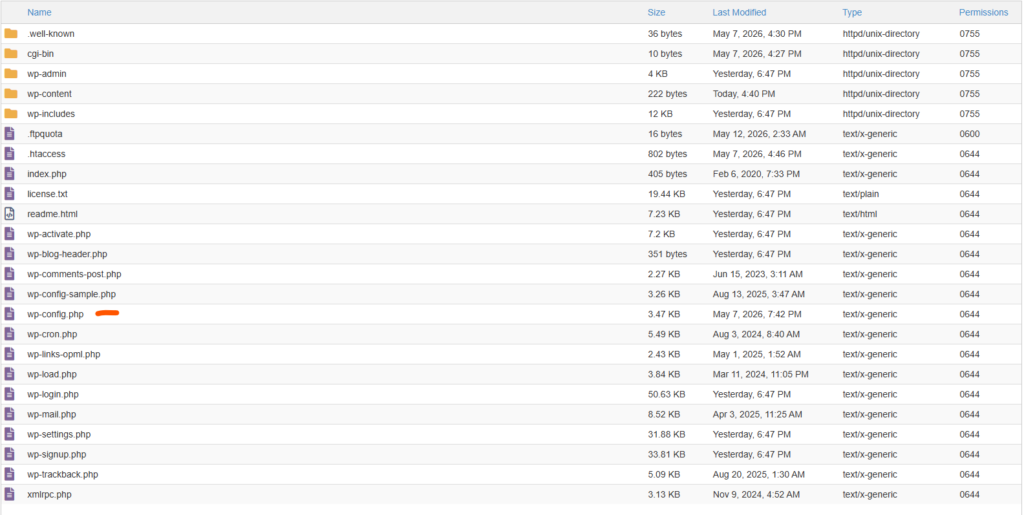
Look for these four lines:
define( 'DB_NAME', 'your_database_name' );
define( 'DB_USER', 'your_database_username' );
define( 'DB_PASSWORD', 'your_database_password' );
define( 'DB_HOST', 'localhost' );
How to Verify the Correct Credentials
- Log in to your hosting control panel (cPanel or similar)
- Go to MySQL Databases
- Find the database associated with your WordPress install
- Confirm the database name, user, and password match what is in wp-config.php
Pro Tip: Many beginners forget that the database user must be assigned to the database in cPanel – creating the user alone is not enough. Always check that the user has “All Privileges” on the database.
If your credentials were wrong, update them in wp-config.php, save the file, and reload your site. In many cases, this single fix resolves the error entirely.
Step 2 – Check If the Database Server Is Running
Sometimes your credentials are perfectly fine, but the database server itself is down. This often happens on shared hosting when the server is overloaded or undergoing maintenance.
How to Test This
Add the following temporary test script to your root folder as testdb.php:
php
<?php
$link = mysqli_connect('localhost', 'DB_USER', 'DB_PASSWORD', 'DB_NAME');
if (!$link) {
    die('Could not connect: ' . mysqli_error($link));
}
echo 'Connected successfully';
mysqli_close($link);
?>
Replace the placeholders with your actual credentials, visit yourdomain.com/testdb.php in your browser, and check the result.
- If you see “Connected successfully” – the database server is running fine, and the issue is likely in wp-config.php.
- If you see an error – the database server itself may be down. Contact your hosting provider immediately.
Important: Delete testdb.php from your server right after testing. Leaving it live is a security risk.
Tired of unreliable hosting causing database errors? Switch to a host that keeps your database always available. Hostinger offers robust MySQL databases, 99.9% uptime guarantee, and expert 24/7 support. Start with plans from as low as a few dollars per month.
Step 3 – Repair a Corrupted WordPress Database
If your server is up and credentials are correct but you are still seeing the error, your database tables might be corrupted. This can happen due to a sudden server crash, a bad plugin, or an interrupted update.
WordPress has a built-in repair tool you can activate safely.
How to Repair the Database
- Open wp-config.php
- Add this line just before
/* That's all, stop editing! */:
define( 'WP_ALLOW_REPAIR', true );- Save the file, then visit: yourdomain.com/wp-admin/maint/repair.php
- Click Repair Database
- Once done, go back to wp-config.php and remove that line
Pro Tip: This repair page does not require you to be logged in – anyone who knows the URL can access it. That is why removing the line immediately after repair is critical for your site’s security. Learn more about keeping your WordPress site safe in our complete WordPress security guide.
Step 4 – Check If Only wp-admin Is Affected
Here is an important diagnostic step that most guides skip: visit your website’s homepage and your wp-admin page separately.
- Frontend works, wp-admin shows the error – this usually means your database is running but overloaded. It may also indicate a corrupted admin table.
- Both show the error – the database is either down, credentials are wrong, or tables are corrupted.
- Only wp-admin shows the error with the message “One or more database tables are unavailable” – WordPress itself is telling you to run the repair tool (Step 3 above).
Step 5 – Check Your DB_HOST Value
Most WordPress installations use localhost as the database host, but some hosting providers – especially managed WordPress hosts or VPS setups – use a different hostname or IP address.
If localhost is not working, try these alternatives in your wp-config.php:
127.0.0.1localhost:3306- A custom hostname provided by your host (check your hosting dashboard or support docs)
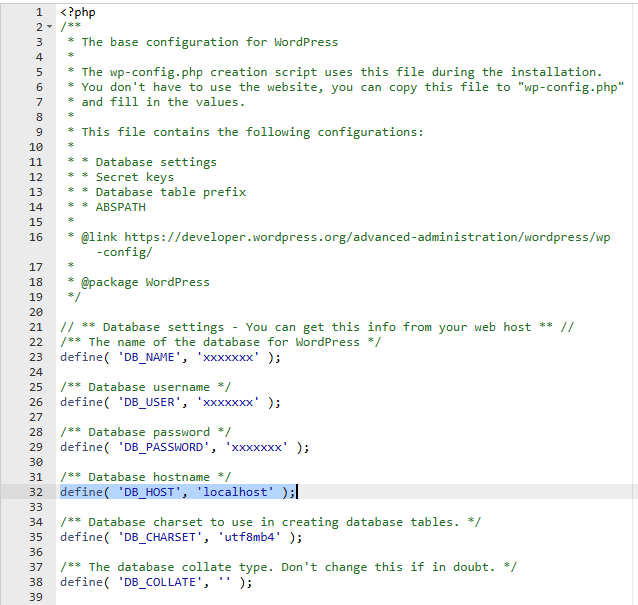
If you recently migrated your WordPress site to a new host, this is a very common issue. The new host often uses a different DB_HOST value than your previous one.
Step 6 – Deactivate All Plugins (If You Can Access the Database)
In rare cases, a plugin can cause database connection issues – especially plugins that directly interact with the database, cache layers, or object cache systems.
If You Can Access cPanel or FTP:
- Navigate to wp-content/plugins/
- Rename the entire plugins folder to something like plugins_disabled
- Try loading your site
If the error disappears, a plugin was the problem. Rename the folder back to plugins, then deactivate plugins one by one from your dashboard to find the culprit.
You can also check our list of essential WordPress plugins to make sure you are only running trusted, well-maintained plugins on your site.
Step 7 – Check for Exceeded Database Limits
On shared hosting plans, your database can hit size or connection limits. When too many simultaneous connections hit the MySQL server, new requests get rejected – causing the database connection error for some or all visitors.
Signs This Is the Cause:
- The error appears intermittently (not all the time)
- Your site gets decent traffic
- The error disappears after a few minutes on its own
What to Do:
- Log in to your hosting dashboard and check your MySQL connection limits
- Consider upgrading your hosting plan
- Implement a caching plugin to reduce the number of database queries your site makes. Check our guide on the best caching plugins for WordPress to reduce server load significantly
Running a growing WordPress site? If your current host keeps throttling your database connections, it might be time to upgrade. Hostinger offers scalable hosting plans with generous database limits, free SSL, and LiteSpeed caching built in – perfect for sites that are ready to grow.
Step 8 – Contact Your Hosting Provider
If none of the above steps resolved the WordPress database error solution for you, the problem is likely on the server side – something only your hosting provider can fix.
When you contact support, give them:
- The exact error message you are seeing
- When it started
- Any recent changes you made (plugin updates, migrations, etc.)
- The result of your testdb.php test from Step 2
A good hosting provider will be able to check the MySQL server logs and identify the issue within minutes. If your host is consistently slow to respond or unable to fix server-level issues, that is a strong signal it is time to move to a more reliable provider.
Common Mistakes to Avoid
Based on experience troubleshooting this error on dozens of WordPress sites, here are the mistakes that cost people the most time:
- Editing wp-config.php without a backup – Always download a copy before making changes
- Leaving the repair page active – Remove
WP_ALLOW_REPAIRimmediately after use - Forgetting to check the database user privileges – The user must have ALL privileges assigned in cPanel
- Assuming it is always a plugin issue – Start with credentials, then move to more complex causes
- Not deleting testdb.php – This exposes your database credentials to anyone who visits the URL
How to Prevent This Error in the Future
Once your site is back online, take these steps to prevent a repeat:
- Set up automatic backups – Use a plugin like UpdraftPlus to back up your database daily
- Use reliable hosting – A good host maintains stable database servers and alerts you before issues escalate
- Monitor uptime – Tools like UptimeRobot (free) will notify you instantly if your site goes down
- Keep WordPress updated – Outdated core files can sometimes cause database compatibility issues. See our guide on common WordPress errors and how to stay ahead of them
- Limit database-heavy plugins – Too many plugins querying the database slows things down and increases the risk of connection limits being hit
Frequently Asked Questions (FAQ)
What causes the “error establishing a database connection” in WordPress?
The most common causes are incorrect database credentials in wp-config.php, a corrupted database, an overloaded or down MySQL server, or exceeded connection limits on shared hosting.
How do I fix the WordPress database connection error without losing data?
Start by checking and correcting your wp-config.php credentials. Then use WordPress’s built-in repair tool at /wp-admin/maint/repair.php. Both methods are safe and do not delete your data.
Why does my WordPress admin show a database error but the frontend works fine?
This usually means your database is running but overloaded, or specific admin-related tables are corrupted. Running the database repair tool typically fixes this.
Can a plugin cause the “error establishing a database connection” in WordPress?
Yes, though it is less common. Plugins that modify database settings, use object caching, or have bugs in their database queries can trigger this error. Deactivating all plugins via FTP is a reliable way to test this.
How do I know if my database server is down?
Use the testdb.php script described in Step 2 of this guide. If it fails to connect, your database server is down – contact your hosting provider right away.
Will repairing the database delete my content?
No. The WordPress repair tool only fixes corrupted table structure – it does not delete posts, pages, settings, or any content. Always take a backup first if you can, but the repair process itself is safe.
Conclusion
The error establishing a database connection in WordPress is scary when it first appears, but it is almost always fixable by working through the steps above in order:
- Check and correct your wp-config.php credentials
- Test if the database server is actually running
- Repair corrupted database tables
- Diagnose whether the error affects the frontend, admin, or both
- Verify your DB_HOST value
- Deactivate plugins as a test
- Check for hosting-level connection limits
- Contact your host if nothing else works
Most people resolve this error within the first two or three steps. The key is staying calm, working methodically, and not making random changes without understanding what each one does.
If you found this guide helpful, drop a comment below with which step fixed your issue – it helps other readers know where to focus first. And if your hosting keeps giving you database headaches, it might be worth reading our guide on how to migrate your WordPress site to a new host for a fresh start on more reliable infrastructure.
Related Reading: