
Your site just went blank. No error message, no dashboard – just a completely white screen staring back at you. If this has happened to you, you’ve run into what WordPress users call the WordPress White Screen of Death (WSOD). It’s one of the most panic-inducing errors a site owner can face, especially when you have no idea where to start.
The good news? This is a fixable problem. In most cases, you don’t need to hire a developer or restore from scratch. This guide walks you through every proven WordPress white screen of death fix, step by step, in plain English – even if you’re a complete beginner.
We’ll cover what causes it, how to diagnose it, and exactly how to get your site back online fast.
Read our guide for common WordPress errors.
Table of Contents
What Is the WordPress White Screen of Death?
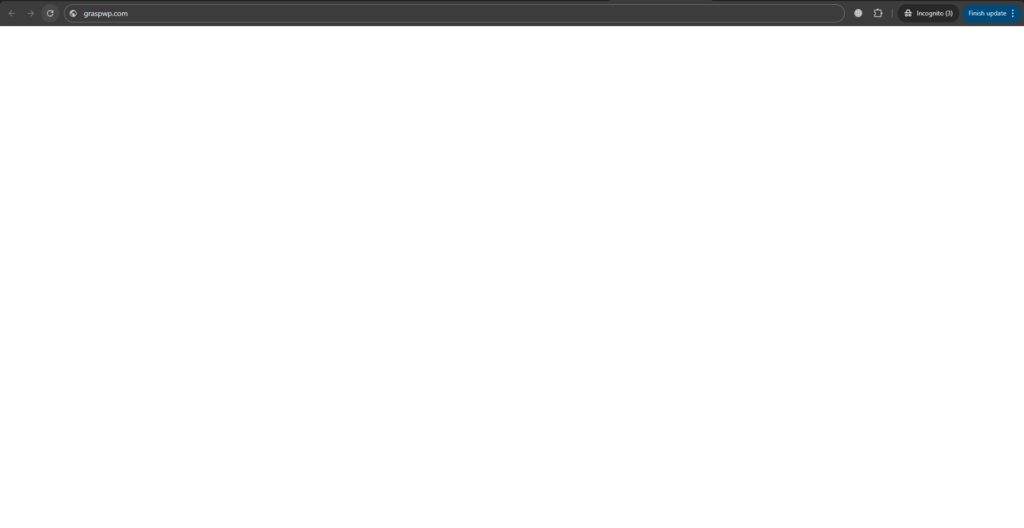
The WordPress White Screen of Death (WSOD) is when your site – or just the admin dashboard – displays a completely blank white page with no content and no error message. Sometimes it affects the entire site. Other times, only the front end or only /wp-admin goes blank.
It’s not a single bug. It’s a symptom – meaning several different underlying issues can trigger it.
What Causes the WordPress White Screen of Death?
Understanding the root cause is half the battle. Here are the most common culprits:
- A faulty or incompatible plugin – This is the #1 cause. A plugin update or a newly installed plugin can break your site.
- A broken or incompatible theme – Especially after a theme update or switching to a custom theme.
- PHP memory limit exhausted – WordPress runs on PHP. If it runs out of memory, it just stops – with no visible error.
- PHP errors in your code – A syntax error in functions.php or a custom snippet can bring everything down.
- Corrupted WordPress core files – Rare, but possible after a failed update.
- Server-side issues – Hosting problems, resource limits, or misconfigured PHP versions.
If you recently updated a plugin, installed a new theme, or made changes to your site’s code right before the blank page appeared – that’s almost certainly your starting point.
How to Fix WordPress White Screen of Death
Work through these fixes in order. Start from the top and stop as soon as your site comes back.
Fix 1: Enable WordPress Debug Mode
Before doing anything else, turn on WordPress debugging. This will replace the blank screen with an actual error message that tells you exactly what’s wrong.
How to do it:
- Connect to your site via FTP or your hosting file manager.
- Open the file
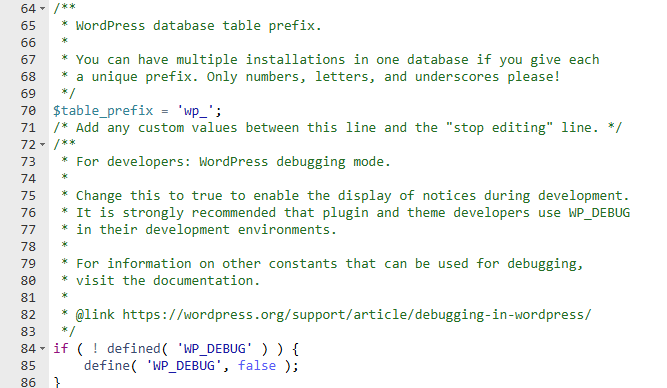
wp-config.phpin your site’s root folder. - Find this line:
define( 'WP_DEBUG', false ); - Replace it with:
define( 'WP_DEBUG', true );define( 'WP_DEBUG_LOG', true );define( 'WP_DEBUG_DISPLAY', true ); - Save the file and reload your site.
If there’s a PHP error, you’ll now see it on screen. It will usually name the exact file and line number causing the problem.
Pro Tip: Once you’ve fixed the issue, always set WP_DEBUG back to
false. Leaving it on exposes error details to visitors.
Fix 2: Deactivate All Plugins
Plugins are responsible for the WSOD more often than anything else. Since you probably can’t access your WordPress dashboard right now, you’ll need to deactivate them via FTP.
How to do it:
- Connect to your site via FTP or the hosting file manager.
- Navigate to
/wp-content/plugins/. - Rename the
pluginsfolder to something likeplugins_disabled. - Reload your site.
If your site comes back, plugins were the cause. Now rename the folder back to plugins. Then go to your WordPress dashboard and reactivate plugins one by one – reloading your site after each one. When the blank screen returns, you’ve found the problem plugin.
Delete or replace that plugin. You can often find an alternative in the WordPress.org plugin directory, or check the plugin developer’s support forum for a known fix.
This method also applies if you’re dealing with a slow WordPress admin caused by a misbehaving plugin.
Fix 3: Switch to a Default WordPress Theme
If disabling plugins didn’t fix it, the theme is the next suspect – especially if you recently changed or updated it.
How to do it via FTP:
- Go to
/wp-content/themes/. - Rename your active theme’s folder (e.g., rename
mythemetomytheme_backup). - WordPress will automatically fall back to a default theme like Twenty Twenty-Four.
- Reload your site.
If it comes back, your theme was causing the blank page. You can then:
- Contact the theme developer for an update or fix.
- Switch to a reliable, lightweight WordPress theme that won’t cause conflicts.
Fix 4: Increase the PHP Memory Limit
WordPress has a default PHP memory limit that can be too low for sites with multiple plugins or resource-heavy themes. When WordPress runs out of memory, it simply stops rendering – giving you a blank screen.
How to increase it:
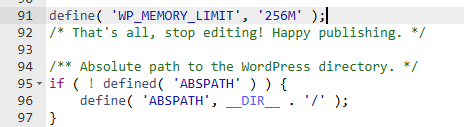
Option A – Edit wp-config.php: Add this line just above the line that says /* That's all, stop editing! */: define( 'WP_MEMORY_LIMIT', '256M' );
Option B – Edit php.ini: If you have access, find or create a php.ini file in your root directory and add: memory_limit = 256M
Option C – Edit .htaccess: Add this line to your .htaccess file: php_value memory_limit 256M
Pro Tip: Start with 256MB. If you’re on a shared hosting plan with low resource limits, contact your host – some plans cap PHP memory regardless of what you set in the config files.
[monetize] Speaking of hosting – if your host frequently limits resources or causes server-side errors, it might be time to move to something more reliable. Hostinger offers generous PHP memory limits, LiteSpeed servers, and a one-click WordPress installer – all at beginner-friendly prices. Many WSOD issues caused by server constraints simply disappear on a better host.
Fix 5: Check for PHP Errors in functions.php
If you or a developer recently added custom code to your theme’s functions.php file, a single typo or missing semicolon can crash your entire site.
How to fix it:
- Via FTP, navigate to
/wp-content/themes/your-theme-name/. - Open
functions.php. - Look for any recently added code at the top or bottom of the file.
- Remove anything that was added recently, save, and reload.
This is one of those fixes where the debug mode from Fix 1 really helps – it will point you to the exact line number causing the PHP fatal error.
If you’re using a child theme (which you should be), changes to your parent theme’s functions.php won’t be overwritten by updates. If you’re not using a child theme, consider learning more in our Gutenberg block theme tutorial.
Fix 6: Increase the PHP Execution Time Limit
Sometimes the blank screen appears during long processes like importing data, running backups, or processing WooCommerce orders. The PHP script times out before it finishes, resulting in a blank page.
Add this to your wp-config.php file: set_time_limit(300);
Or add this to your .htaccess: php_value max_execution_time 300
This gives PHP 5 minutes to complete the script instead of the default (usually 30-60 seconds).
Fix 7: Deactivate WordPress Caching
Caching plugins occasionally serve a cached version of a broken page – making it look like the WSOD is still there even after you’ve fixed the underlying issue.
Via FTP:
- Navigate to
/wp-content/plugins/. - Rename your caching plugin folder (e.g.,
w3-total-cachetow3-total-cache-disabled). - Also delete the
/wp-content/cache/folder entirely. - Reload your site.
If you use a server-level cache (like LiteSpeed Cache or Nginx), log into your hosting panel and purge the cache from there.
For a list of well-configured caching plugins that are less likely to cause conflicts, see our guide on the best caching plugins for WordPress.
Fix 8: Re-upload WordPress Core Files
If none of the above fixes worked, there may be corruption in your core WordPress files. This can happen after a failed auto-update.
How to do it:
- Download the latest version of WordPress from wordpress.org/download.
- Unzip the file on your computer.
- Delete the
wp-contentfolder from the downloaded package (you do NOT want to overwrite your content). - Via FTP, upload everything else from the downloaded package to your server, overwriting the existing files.
This replaces the core files without touching your themes, plugins, or database.
Fix 9: Check Your Hosting Server Logs
If you’ve tried everything and the site is still blank, the issue might be entirely on the server side – not in WordPress at all.
Log into your hosting panel (cPanel, hPanel, etc.) and look for Error Logs under the Advanced or Metrics section. Server-level errors like resource limits being hit, misconfigured PHP versions, or a failed mod_rewrite rule will appear here.
If you see errors you don’t understand, copy them and search for the exact message – or contact your hosting support team.
Common Mistakes People Make During WSOD Troubleshooting
After going through these steps with dozens of WordPress sites, here are the mistakes that cause the most headaches:
- Restoring a backup without diagnosing the cause – The problem will just come back next time you update that plugin or theme.
- Editing the wrong wp-config.php – Some hosting setups have multiple WordPress installs. Make sure you’re editing the right one.
- Forgetting to turn debug mode off – Leaving
WP_DEBUGset totrueon a live site is a security risk. - Blaming the host first – In 9 out of 10 cases, the WSOD is caused by a plugin or theme, not the server.
- Not using a child theme – Direct edits to a parent theme’s
functions.phpget wiped on every theme update, and meanwhile they can cause a WSOD.
Also check out our guide on common WordPress errors to understand the full picture of what can go wrong – and how to prevent it.
How to Prevent the WordPress White Screen of Death
Prevention is always better than troubleshooting at midnight. Here’s what actually works:
- Take a backup before every update – Use a plugin like UpdraftPlus or check our roundup of the best WordPress backup plugins.
- Test updates on a staging site first – Most quality hosts offer staging environments.
- Keep WordPress, themes, and plugins up to date – Outdated code is far more likely to conflict.
- Use a staging or testing environment before applying changes to production.
- Choose quality plugins – Stick to well-maintained plugins with recent updates and good ratings.
- Keep your site on a reliable host – Hosts with strict PHP memory limits or outdated PHP versions cause far more problems than you’d expect.
Frequently Ask Questions (FAQ)
Why is my WordPress site showing a blank white page?
The most common reasons are a faulty plugin, a broken theme, a PHP memory limit that’s been exceeded, or a PHP error in your site’s code. Enabling WP_DEBUG in wp-config.php will usually reveal the exact cause immediately.
How do I fix the blank page WordPress error without FTP?
If you still have access to your hosting control panel, use the built-in File Manager – it works the same way as FTP. You can rename plugin folders, edit wp-config.php, and delete the cache folder all from within your hosting panel’s browser-based interface.
Why does WordPress show a white screen of death only in the admin area?
When only /wp-admin is blank but the front end works, the issue is usually an admin-specific plugin (like a dashboard widget plugin or an admin customization plugin) or a memory issue that only triggers under the load of loading the dashboard. Deactivate plugins and increase the memory limit first.
Can a WordPress update cause the white screen of death?
Yes. A WordPress core update can fail partway through if your server runs out of memory or hits a timeout – leaving your core files in a broken state. In this case, Fix 8 (re-uploading core files) is your best bet.
How do I fix the WordPress white screen of death when I’m locked out of everything?
Access your site via FTP or your host’s File Manager. Rename the plugins folder, switch the active theme by renaming theme folders, enable WP_DEBUG, and increase the PHP memory limit – all without needing to log in to WordPress.
Is the WordPress white screen of death a security issue?
Not usually. The WSOD is almost always a code or resource issue, not a hack. However, if you notice it coinciding with other strange behavior (new admin accounts, unfamiliar files), check out our WordPress security guide to rule out a compromise.
Conclusion
The WordPress White Screen of Death looks terrifying but it almost always has a straightforward fix. Work through the steps in this guide: enable debug mode first to identify the error, then move through the plugin/theme/memory fixes in order.
To recap the key fixes:
- Enable WP_DEBUG to surface the actual error.
- Deactivate all plugins via FTP.
- Switch to a default theme.
- Increase the PHP memory limit.
- Check functions.php for recent code changes.
- Re-upload WordPress core files if needed.
And going forward – always back up before updates, use a staging environment, and make sure you’re on a hosting plan that doesn’t throttle PHP resources.
Have a question or a fix that worked for you that isn’t on this list? Drop it in the comments below – it might help someone else.
Related Reading: